5% Off Powermat

Join The Community

Showing posts with label Custom Firmware. Show all posts
Tuesday, November 16, 2010

How to Fix 1604, 1601, 1600, 16xx Error During iOS 4.1 Custom IPSW Firmware Restore in iTunes with iREB 4.1

New version of iREB for all iOS 4.1 devices is now available for download. You can use it to bypass 1604, 1603, 1602, 1601, 1600 error in iTunes during custom iOS 4.1 firmware restore which has been created using either Sn0wbreeze or PwnageTool.

Saturday, November 13, 2010

Sn0wbreeze 2.1 iOS 4.1 Jailbreak for All iOS Devices Released [Custom Firmware Windows]

Sn0wbreeze 2.1 for iOS 4.1 / 3.2.2 is now available for download. If any of the existing iOS 4.1 jailbreak tools didn’t work for you, you can give Sn0wbreeze 2.1 a try! For those of you who don’t know, like PwnageTool for Mac, Sn0wbreeze for Windows can be used to create custom firmware files for iOS 4.1 without the upgraded baseband so that you can unlock iOS 4.1 (05.13.04 baseband) with existing version of Ultrasn0w.

Monday, October 11, 2010

New Version of Sn0wbreeze Can Create Custom Firmware Files for iPhone 4 using Limera1n’s Exploit

George Hotz’ dramatic re-entry into the iOS jailbreaking scene has left many surprised, and certain people shattered (pun intended). In the hailstorm of all this iOS 4.1 jailbreaking news, jailbreak developer iH8Sn0w has announced that he will be releasing a new version of Sn0wbreeze for Windows (similar to PwnageTool for Mac) which will be based on Limera1n’s bootrom exploit.

Sunday, July 18, 2010

Jailbreak iOS 4.1 with Sn0wbreeze [Custom Firmware Windows]


Sn0wbreeze 1.8 has been released. This is by the same developer who is behind other popular iPhone jailbreak tools such as sn0wbreeze 1.6 and 1.7 for iOS 4sn0wbreeze for iPhone 3.1.3f0recast and BlackBreeze. Just like the PwnageTool for Mac, Sn0wbreeze 1.8 can jailbreak iPhone 3GS (old bootrom, and already pwned on iOS 4.x), iPod touch 2G (non MC model) and iPod touch 3G on iOS 4.1 Beta. iPhone 3G users will have to jailbreakusing Redsn0w, guide for which is posted here.

Sn0wbreeze 1.8
So if you have a Windows machine, you can use Sn0wbreeze 1.8 to create custom firmware files without the upgraded baseband. Again, only the following devices are supported.
  • iPhone 3GS (old bootrom and already jailbroken on iOS 4.x)
  • iPod touch 2G (non MC model)
  • iPod touch 3G
Warning: If you rely on an unlock, DO NOT update to iOS 4.1.
Instructions are as follows.
Step 1: Download and install the latest version of iTunes.
Step 2: Now start iTunes and sync your iPhone with your PC so that it backs-up all your important data including settings, apps, music, contacts and photos.
Step 3: Download Sn0wbreeze and the original iOS 4.1 firmware file for your version of iPhone or iPod touch. Move all these files to your desktop.
Step 4: Start Sn0wbreeze and select “Simple Mode”.
sn0wbreeze 3.1.3
Step 5: Sn0wbreeze will now ask you to browse for your .ipsw file. Select the correct iOS 4.1 firmware .ipsw file by clicking the “Browse” button. Sn0wbreeze will verify the selected file and then will present you with following screen.
Sn0wbreeze 1.6 for 4.0 (1)
Step 6: Click on "Yes" when Sn0wbreeze asks you “Do you want to activate your iPhone?” for hacktivation. Click on “No” only if you are on an officially supported carrier like AT&T.
sn0wbreeze 3.1.3
Step 7: Sn0wbreeze will now create the custom .ipsw file for your iPhone which will be jailbroken.
sn0wbreeze 3.1.3sn0wbreeze 3.1.3
Step 8: Now you will have to restore your iPhone to this custom firmware 4.1 that you just cooked using Sn0wbreeze for your iPhone. Click on your phone from the sidebar in iTunes and then press and hold left “Shift” button on the keyboard and then click on “Restore” (Not “Update” or “Check for Update”) button in the iTunes and then release the “Shift” button.
This will make iTunes prompt you to select the location for your custom firmware 4.1. Select that custom .ipsw file and click on “Open”.
Step 9: Now sit back and enjoy as iTunes does the rest for you. This will involve a series of automated steps. Be patient at this stage and don’t do anything silly. Just wait while iTunes installs the new iOS 4.1 on your iPhone. Your iPhone screen at this point will be showing a progress bar indicating installation progress. After the installation is done, iPhone will restart automatically and you should now have a fully jailbroken iPhonerunning on iOS 4.1.
Step 10: Once you are done with the jailbreak process. You can now restore all your settings, apps, music, contacts and photos to the newly installed iOS 4.1 by restoring the backup that you made in Step 2 from iTunes.
Feel free to ask me any question here should you run into any problem during the jailbreak process.
Download iTunes 9.2 for Windows and Mac OS X
Download iOS 4.1 for iPhone 3GS, iPhone 3G and iPod touch
Download .NET Framework 3.5 (required to run Sn0wbreeze)
Download Sn0wbreeze 1.8 (Windows Only) [Fast Mirror link]
Disclaimer: This guide is for testing & educational purposes only. Follow it on your own risk. I’m not responsible for any loss of important data or malfunctioning of your iPhone.
You may also like to check out:
You can follow me on twitter to keep yourself updated on all the latest jailbreaking and unlocking releases.

Source: redmondpie

Thursday, June 24, 2010

Jailbreak iOS 4 iPhone 3GS 3G with Sn0wbreeze [Custom Firmware Windows]


Sn0wbreeze 1.6 has been released. This is by the same developer who is behind other popular iPhone jailbreak tools such as sn0wbreeze for iPhone 3.1.3f0recast andBlackBreeze. Just like the PwnageTool for Mac, Sn0wbreeze 1.6 can jailbreak iPhone 3GS (old bootrom, and already pwned on 3.1.2 with anything other than Spirit), iPhone 3G and iPod touch 2G (non MC model).

Sn0wbreeze 1.6 for 4.0
So if you have a Windows machine, you can use Sn0wbreeze 1.6 to create custom firmware files without the upgraded baseband. Again, just like the PwnageTool 4.0 / 4.01, only the following devices are supported.
  • iPhone 3G/3GS (old bootrom/already jailbroken with anything other than Spirit)
  • iPod Touch 2G (non MC model)
Instructions are as follows.
Step 1: Download and install the latest version of iTunes.
Step 2: Now start iTunes and sync your iPhone with your PC so that it backs-up all your important data including settings, apps, music, contacts and photos.
Step 3: Download Sn0wbreeze and the original iOS 4 firmware file for your version of iPhone or iPod touch (download links given below). Move all these files to your desktop.
Step 4: Start Sn0wbreeze and select “Simple Mode”.
sn0wbreeze 3.1.3
Step 5: Sn0wbreeze will now ask you to browse for your .ipsw file. Select the correct iOS 4 firmware .ipsw file by clicking the “Browse” button. Sn0wbreeze will verify the selected file and then will present you with following screen.
Sn0wbreeze 1.6 for 4.0 (1)
Step 6: Click on "Yes" when Sn0wbreeze asks you “Do you want to activate your iPhone?” for hacktivation. Click on “No” only if you are on an officially supported carrier like AT&T.
sn0wbreeze 3.1.3
Step 7: Sn0wbreeze will now create the custom .ipsw file for your iPhone which will be jailbroken.
sn0wbreeze 3.1.3sn0wbreeze 3.1.3
Step 8: Now you will have to restore your iPhone to this custom firmware 4.0 that you just cooked using Sn0wbreeze for your iPhone. Click on your phone from the sidebar in iTunes and then press and hold left “Shift” button on the keyboard and then click on “Restore” (Not “Update” or “Check for Update”) button in the iTunes and then release the “Shift” button.
This will make iTunes prompt you to select the location for your custom firmware 4.0. Select that custom .ipsw file and click on “Open”.
Step 9: Now sit back and enjoy as iTunes does the rest for you. This will involve a series of automated steps. Be patient at this stage and don’t do anything silly. Just wait while iTunes installs the new iOS 4 on your iPhone. Your iPhone screen at this point will be showing a progress bar indicating installation progress. After the installation is done, iPhone will restart automatically and you should now have a fully jailbroken iPhone running on iOS 4.
How to: Unlock iPhone on iOS 4.0 (Any Baseband): Follow the complete step by step guide posted here to unlock iPhone 3GS and iPhone 3G, on iOS 4, on any baseband using Ultrasn0w 0.93.
Step 10: Once you are done with the unlocking and jailbreak process. You can now restore all your settings, apps, music, contacts and photos to the newly installed iOS 4 by restoring the backup that you made in Step 2 from iTunes.
Feel free to ask me any question here should you run into any problem during the jailbreak process.
Download iTunes 9.2 for Windows and Mac OS X
Download iOS 4 for iPhone 3GS, iPhone 3G and iPod touch
Download .NET Framework 3.5 (required to run Sn0wbreeze)
Download Sn0wbreeze 1.6 / 1.6.1 for 4.0 (Windows Only) [Fast Mirror link]
Disclaimer: This guide is for testing & educational purposes only. Follow it on your own risk. I’m not responsible for any loss of important data or malfunctioning of your iPhone.
UPDATE 1: Sn0wbreeze 1.6.1 is now available. Download Sn0wbreeze 1.6.1 for 4.0 from the updated link given above.
You may also like to check out:
You can follow me on twitter to keep yourself updated on all the latest jailbreaking and unlocking releases.

Source: redmondpie

Fix 1604, 1600 Error During iOS 4 Custom Firmware Restore in Tunes


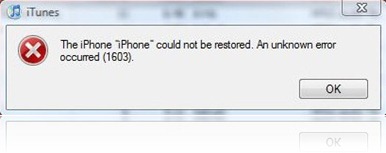
Some of you might have noticed the annoying 16041600 error when restoring to iOS 4custom firmware in iTunes which is built using PwnageTool 4.0 or 4.01. The error in question looks something on the lines of this.

The iPhone "[your iPhone]" could not be restored. An unknown error occurred.
16xx and 21 Error in iTunes during iPhone 3.1 Restore
Going through the comments posted here, I found this fix posted by one of our reader which I thought I should share it with you all. I haven’t tried this because I never got the error, but if you did get the error, let us know if the instructions posted below fixes the issue.
The instructions, as posted by Carlos Leopoldo are as follows:
Steps to fixing 1604 iPhone restore error:
1. There is no need to reinstall iTunes or whatever. Keep the same version that you have used to restore or backup previously.
2. Make sure that iPhone is disconnected from your computer and that iTunes is closed.
3. The following step of fixing 1604 iPhone restore error is Windows XP specific, if you are a Mac user, you may have to locate the folders yourselves as I am not sure: Go to folder C:\Documents and Settings\\Application Data\Apple Computer\iTunes\iPhone Software Updates. You will see one or more files. Cut and paste them somewhere else. Do not delete them in case the steps does not work for you, you can still copy them back to the folder. You can find out your username by doing a Ctrl-Alt-Del. If somehow you cannot find the folder, you are probably in the wrong user directory.
4. Launch iTunes and put your iPhone in recovery mode. Refer to this article on Unable To Restore iPhone on how to do put iPhone in recovery mode.
5. Proceed with restore and iTunes will download the update online. If you are downgrading to a lower version, do step 3 and leaving only the firmware file that you want to downgrade to. Double click on the file and iTunes will begin the restore.
Please do share your results with us in the comments section below. Thanks.
You may also like to check out:
You can follow me on twitter to keep yourself updated on all the latest jailbreaking and unlocking releases.

Source: redmondpie

Thursday, February 11, 2010

Fix 1604 Error During iPhone 3.1.3 IPSW Custom Restore


I have got loads of emails and queries via comments on the posts here and here where many of you have been asking on how to fix 1604, 1603, 1602, 1601, 1600 error in iTunes during firmware restore. This error is occurred when you are trying to restore yourjailbroken custom iPhone 3.1.3 .ipsw file which you cooked using either PwnageTool orsn0wbreeze. The error which iTunes throws may look like this.

The iPhone "[your iPhone]"  could not be restored. An unknown error occurred.
Fix 1604 Error iPhone 3.1.3
To get around this problem, there is a handy little tool called iREB (iTunes Restore Error Bypasser) for Windows which can help you bypass the error when you are restoring .ipsw file in iTunes. The latest version of this program works with iPhone 3.1.3 firmware running on the original iPhone, iPhone 3G and iPod touch 1G/2G.
Follow the steps below to bypass this error so that you can restore iPhone 3.1.3 firmware in iTunes.
Step 1: Start iTunes and put your phone into DFU mode:
Press and hold the Home button and the Power button at the same time. After exactly 10 seconds release the Power button. Continue holding the home button until you iTunes pops up a message telling you that it has detected an iPhone in recovery mode. At this point your iPhone/iPod touch screen will remain black.
Fix 1604 Error iPhone 3.1.3
Step 2: Now close iTunes and Start iREB on Windows.
iREB
Step 3: Simply select your device and wait for a few seconds until you get white or a red screen on your iPhone or iPod touch.
Step 4: Now open iTunes and select your phone from the sidebar in iTunes. Now press and hold left “alt” button (“Shift” button on Windows) on the keyboard and then click on “Restore” (Not “Update”) button in the iTunes and then release the “Shift” button. Select a custom .ipsw file and restore it.
That’s it! iTunes should now be able to restore your iPhone or iPod touch to the latest iPhone 3.1.3 firmware without any problems. Hopefully you wont get any errors this time around!
One thing to note here is that iREB is not for jailbreaking. It is only used for restoring to custom .ipsw firmware files via iTunes without any errors.
You can follow our complete jailbreaking guide for iPhone 3.1.3 firmware for iPhone 2G, 3G, 3GS and iPod touch 1G/2G using redsn0w 0.9.3redsn0w 0.9.4sn0wbreeze,PwnageTool 3.1.5. Unlocking can be done using ultrasn0w or blacksn0w.
For iPhone 3.1.2 firmware, you can use blackra1nPwnageToolredsn0wsn0wbreeze,ultrasn0w and blacksn0w to jailbreak and unlock your iPhone and iPod touch.

Download iTunes 9.0.3 for Windows and Mac 
Download iREB for Windows [Fast Mirror Link]


You can follow me on twitter to keep yourself updated on all the latest iPhone jailbreaking and unlocking releases.

Source: redmondpie

Tuesday, January 12, 2010

Guide to Jailbreak iPhone 2G 3G 3GS 3.1.2 on Windows with Sn0wbreeze

Sn0wbreeze like blackra1n, redsn0w and PwnageTool is yet another jailbreaking tool for iPhone and iPod touch which can be used to create custom .ipsw files. But unlike thePwnageTool, Sn0wbreeze is fully compatible to work with Windows 7/Vista and XP machines. If for some reason the earlier mentioned tools didn’t work for you, you can give Sn0wbreeze a try and see if it helps in jailbreaking your iPhone with a custom .ipsw file.


Note: Sn0wbreeze is a beta release and it may have some issues. blackra1n and PwnageTool are still the recommended tools for jailbreaking iPhone and iPod touch. Complete step by step guide for jailbreaking iPhone/iPod touch with blackra1n can befound here, and with PwnageTool here.
The current version of Sn0wbreeze supports iPhone 2G/3G/3GS(non MC) and iPod touch 1G and 2G (non MC). Follow the step by step guide posted below to jailbreak your iPhone and iPod touch with Sn0wbreeze.
Step 1: Download and install the latest version of iTunes.
Step 2: Now start iTunes and sync your iPhone with your PC so that it backs-up all your important data including settings, apps, music, contacts and photos.
Step 3: Download Sn0wbreeze and the original iPhone OS 3.1.2 for your version of iPhone (download links given below). Move all these files to your desktop.
Step 4: Start Sn0wbreeze and select “Simple Mode”. Dont select “Expert Mode” as it is still a work in progress and may not work properly.

Step 5: Sn0wbreeze will now ask you to browse for your .ipsw file. Select the correct 3.1.2 firmware .ipsw file for iDevice by clicking the “Browse” button. Sn0wbreeze will verify the selected file and then will present you with following screen.

Step 6: Click on "Yes" when Sn0wbreeze asks you “Do you want to activate your iPhone?” for hacktivation. Click on “No” only if you are on an officially supported carrier like AT&T.

Step 7: Sn0wbreeze will now create the custom .ipsw file for your iPhone which will be jailbroken.


Step 8: Now you will have to restore your iPhone to this custom firmware 3.1.2 that you just cooked using Sn0wbreeze for your iPhone. Click on your phone from the sidebar in iTunes and then press and hold left “Shift” button on the keyboard and then click on “Restore” (Not “Update” or “Check for Update”) button in the iTunes and then release the “Shift” button.


This will make iTunes prompt you to select the location for your downloaded custom firmware 3.1.2. Select that custom .ipsw file and click on “Open”.
Step 9: Now sit back and enjoy as iTunes does the rest for you. This will involve a series of automated steps. Be patient at this stage and don’t do anything silly. Just wait while iTunes installs the new firmware 3.1.2 on your iPhone. Your iPhone screen at this point will be showing a progress bar indicating installation progress. After the installation is done, iPhone will restart automatically and you should now have a fully jailbroken iPhone running on firmware 3.1.2.
How to: Unlock iPhone on 3.1.2:
You can now follow the tutorial/guide posted here to unlock your iPhone on firmware 3.1.2 using ultrasn0w, or here to unlock iPhone (05.11.07 baseband) with blacksn0w .
Step 10: Once you are done with the unlocking and jailbreak process. You can now restore all your settings, apps, music, contacts and photos to the newly installed firmware version 3.1.2 by restoring the backup that you made in Step 2 from iTunes.
Disclaimer: This guide is for testing & educational purposes only. Follow it on your own risk. I’m not responsible for any loss of important data or malfunctioning of your iPhone.
Feel free to ask me any question here should you run into any problem during the jailbreak process.
If you just got an iPhone or an iPod touch, make sure you check out our tons of tips & tricks, jailbreaking & unlocking guides and iPhone apps/games reviews by following this link.
Download iTunes 9.0.2 for Windows and Mac OS X
Download the Original iPhone OS 3.1.2 firmware for iPhone
Download .NET Framework 3.5 (required to run Sn0wbreeze)
Download Sn0wbreeze for Windows
You can follow me on twitter to keep yourself updated on all the latest iPhone jailbreaking and unlocking releases.

Source: redmondpie

Sunday, October 18, 2009

Unlock iPhone 3GS Firmware 3.1.2 on Windows


gain so Quickly Dev Team released the new Pwnage tool 3.1.4 to Jailbreak iphone 3GS 3.1.2 on MAC. But again this time it was not available for the Windows. So again we made a iPhone 3GS 3.1.2 Activated CustomFirmware to Jailbreak and Unlock iPhone 3GS 3.1.2. Yes i tried it this on my iPhone 3GS on Windows and it was working so smoothly. But only users with a previously Jailbroken iPhone 3GS should try this tutorial and yes it does not work for those who have an iPhone 3GS with Firmware 3.1 out-of-the-box. So here is the guide:-
Download all these 3 Rapidshare Links and Join with them HJsplit and Unzip it on your desktop.

After Joining them with HJsplit and savie it on the Desktop do these steps.
1. Download and intsall iTunes 9, and then run it.
.
2. Connect your iPhone 3GS to the Windows PC.
.
3. Click ‘Restore’ while holding SHIFT key and select the Custom IPSW that you saved in your desktop.
.
4. Now sit back and enjoy as iTunes does the rest for you. Once everything is processed and OS boots up, install Ultrasnow, See below how to do that.
.
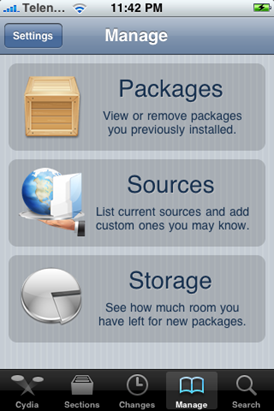
5. Start “Cydia” on your iPhone and click “Manage” tab on the bottom than “Sources” as seen in the screenshot below:
cydia-sources
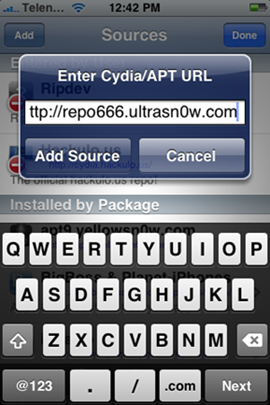
6. Click “Edit” and then on “Add”. Now enter a url source
as seen in the screenshot below. Type “http://repo666.ultrasn0w.com” and touch on “Add Source”.
add source
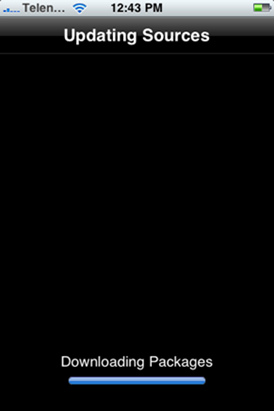
7. Now Cydia will automatically update your sources by following a series of automated steps.
instaal cydia
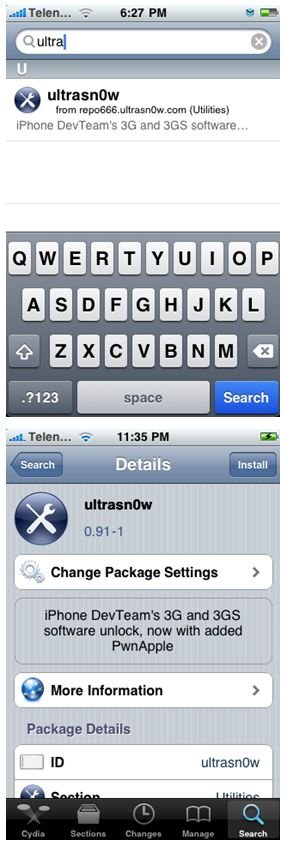
8. After installation is completed. Search for “ultrasn0w” in Cydia and install it.
1
Thats it! now your
iPhone 3GS 3.1.2  is Jailbreak and Unlock too. Enjoy it.
Source: technobuzz