5% Off Powermat

Join The Community

Showing posts with label Hack. Show all posts
Thursday, November 5, 2009

Secure Your Jailbroken iPhone and Change your Default Password

Recently A Dutch hacker, managed to break into jailbroken iPhone & tried to extort € 5 from the victim. Later it was discovered hacker attacked a number of vulnerable phones on T-mobile Netherlands and tried to extort €5 from them. Here is the original Dutch Forum from where all the incidences comes in to light. Arstechnia added “ It appears one enterprising Dutch hacker used port scanning to identify jailbroken iPhones on T-mobile Netherlands with SSH running. Enabling SSH is a common procedure for jailbroken iPhones, allowing a user to log in via Terminal and run standard UNIX commands. Unfortunately, iPhones all have a default root password that many forget to change after jailbreaking”.


In this instance, the hacker changed the wallpaper (see above) on compromised iPhones so they displayed the following message:


Important Warning
Your iPhone’s been hacked because it’s really insecure! Please visit doiop.com/iHacked and dsecure your iPhone right now!
Right now, I can access all your files.. This message won’t disappear until your iPhone’s secure
And when he visited the mentioned site another threatening message.
If you don’t pay, it’s fine by me, but remember, the way I got access to your iPhone can be used by thousands of others-they can send text messages from your number (like I did), use it to call or record your calls, and actually whatever they want, even use it for their hacking activities! I can assure you, I have no intention of harming you or whatever, but, some hackers do! It’s just my advice to secure your phone.
_____________________________________________________________________________________
How to Secure your iPhone from these kind of threats


Step 1: Go to Cydia and search for MobileTerminal app and then install it on your iPhone. Once you have successfully installed MobileTerminal, Reboot your iPhone.


Step 2: Now start MobileTerminal app and type the following command:
passwd


Step 3: You’ll now be asked for your old password which should be ‘alpine’ (without the quotes), followed by a new one of your choice (twice). Simply enter your old and new password and you are done!


Note: the instruction in Step 2 will change your mobile password only. In order to change root password, type ‘login’ command (without quotes) and then press enter. Now type ‘root’ (without quotes) as your login and ‘alpine’ as your current root password. Once you have logged in as root, type ‘passwd’ command (without quotes) again and press enter. It will now prompt you to enter a new password (twice). Simply enter your desired new password again as you did in Step 3 (for changing mobile password) and you should be all fine. It is highly recommended that you change, both your mobile and root passwords to make sure you are completely safe from any outside SSH attack.
or 
Change the Root Password of iPhone : it’s the most easiest way all you need is to install Mobile Terminal if you haven’t installed and then change the root password.   Note that the text between >> << aren’t commands that text is for your reference only.
  • su root                                                 >> << login root with all access >> <<
  • alpine                                                  >> <<  it’s your default password >> <<
  • passwd root                                       >> <<To change your default password >> <<


Turn of SSH when not required : Install SBSettings from Cydia so you can turn it off or on when you really required this.
If you have any question we’ll love to hear back from you on twitter via @iTune2iPhone and keep your self updated with the latest of iPhone community.


Source: ihackintoshredmondpie


Update: How to recover your Hacked iPhone. Follow the step by step instructions.
1. Get an SSH program like putty for windows.

2. SSH to your iPhone. (If you haven't done that before it may take a while, and after that there might come a warning about a key fingerprint. You can just accept that). Login using username "root" and password "alpine". (this is the default password)
3. There's a few commands you have to execute, best is to just copy them:

rm /System/Library/LaunchDaemons/com.apple.syslog.plist
chown mobile /private/var/mobile/Library/LockBackground.jpg
chmod 666 /private/var/mobile/Library/LockBackground.jpg
mv /private/var/mobile/Documents/LockBackground.backup.jpg /private/var/mobile/Library/LockBackground.jpg
4. That's everything to remove the stuff. Now there's one command left to make sure this won't happen again! Again in putty or any SSH client type: "passwd". You'll then be asked for a new password, you can change this into anything you want. The safer the better of course (:

The reason you have to change this password is that it's default is "alpine" at ALL iPhones. So if anyone knows that (and all hackers do) they can access your iPhone. Now you've changed it this isn't possible anymore!


Source: From Hacker's site

Thursday, October 22, 2009

Search for text on any Website on your iPhone


Search for Text on Webpage using iPhone
When you are browsing on your iPhone have you come across the need to be able to search for a word on the website ? Traditionally this is not possible , but there is a hack to get this up and running on any iPhone and unlike the many other hacks this does NOT require you to Jailbreak your device.

Copy the following code on your iPhone, you can open the page in mobile Safari and copy it or copy and paste the following text into an e-mail and send it to yourself.
javascript:void%28s%3Dprompt%28%27Find%20text%3A%27%2C%27%27%29%29%3Bs%3D%27%28%27+s+%27%29%27%3Bx%3Dnew%20RegExp%28s%2C%27gi%27%29%3Brn%3DMath.floor%28Math.random%28%29*100%29%3Brid%3D%27z%27%20+%20rn%3Bb%20%3D%20document.body.innerHTML%3Bb%3Db.replace%28x%2C%27%3Cspan%20name%3D%27%20+%20rid%20+%20%27%20id%3D%27%20+%20rid%20+%20%27%20style%3D%5C%27color%3A%23000%3Bbackground-color%3Ayellow%3B%20font-weight%3Abold%3B%5C%27%3E%241%3C/span%3E%27%29%3Bvoid%28document.body.innerHTML%3Db%29%3Balert%28%27Found%20%27%20+%20document.getElementsByName%28rid%29.length%20+%20%27%20matches.%27%29%3Bwindow.scrollTo%280%2Cdocument.getElementsByName%28rid%29%5B0%5D.offsetTop%29%3B
If you cant see the code above, download this text file : SearchOnPage
Now open up Safari on your iPhone and go to any web site. Bookmark the website to your Safari bookmarks. After that, edit the bookmark you just bookmarked and erase title of the bookmark and name it “SearchOnPage” or whatever you want. Save it. Open the Bookmark and click on Edit and select SearchOnPage. Erase the entire http://www.whatever address line and double tap in the blank space and then tap on “Paste”. Click on Done.
To test it out, go to any website and then tap the bookmarks icon and select “SearchOnPage”. You will get a Popup. Type what ever you want to search in there. And then the app will tell you how many times the word has appeared on the webpage and then it will highlight the keyword in a yellow background. You should now be able to find text in whatever web site you’re currently on. Credits to the original author Rafael Cimatti for coming up with this great hack.

Sunday, October 18, 2009

Enable Video Editing Mode in iPhone 2G and 3G


iSpazio posted a guide on enabling video editing toggle. VideoToggle will help you to install the toggle for Video Editing on the iPhone2G and iPhone 3G. In this way, you will be able to record video using Cycorder, which will end up directly in the photographic film iPhone and then you can edit / cut just as iPhone 3GS. The function is regulated by a practical Toggle for SBSettings and then we provide all the details to install the mod.
Warning : These Mods are still in beta and available for testing purposes only and we are not responsible for any damage, before getting started please Backup iPhone Contacts, SMS, Notes & Call History manually (Just in case)

Requirements:

  • SBSettings installed on iPhone (Available on Cydia)
  • OpenSSH installed on iPhone (Available on Cydia)
  • MobileTerminal installed on iPhone (Available on Cydia)
  • Cycorder (to record video) installed on iPhone (Available on Cydia)
  • Cyberduck or WinSCP installed on your computer ( How to Access iPhone via SSH on Windows Mac)

Download:

Guide:

Step 1 : Unpack the file. Zip just downloaded and connect via SSH to your iPhone.
Step 2 : Copy the entire folder “VideoToggle” in the following location: “private / var / tmp”
Step 3 : Run Mobile Terminal on iPhone and type these commands:
su root
  Alpine
  bash /private/var/tmp/VideoToggle/install
Step 4 : Will be made of processes, and finally there will be a Respring. At this point SBSettings open and see a new Toggle (in red) called VideoToggle.
When the toggle is off, you can record videos and save them in a film camera. When want to modify and cut them, you must activate the toggle and go exactly with iPhone 3GS! You can then select the part you want and then click the Cut button on the upper right.Also, if the toggle is ON, you wont be able to use the photo camera. Turn it OFF, and you’ll get your camera back.
Note: When the Toggle of Video Editing is active, it will be impossible to take pictures through the camera, which will remain forever closed. “Remember then toggle to activate only when you need to change something.
IMG_0191 IMG_0190

Uninstalling:

To remove the software, start the terminal and type these strings:
su root
  Alpine
  bash /private/var/tmp/VideoToggle/uninstall

How to Activate Video Camera in iPhone 2G/3G OS 3.0


Before getting started let me clear we are talking about activating video camera so please bear in mind we are not talking about recording with your iphone 3G 2G on OS 3.0 But i am sure sooner we’ll be able to record video with our 2G and 3G iPhone running on OS 3.0 This hack is a preview of native video recording application included in iPhone 3G S. the full credit goes to iSpazio team who made this hack possible and they are developing this hack. We’ll publish the every latest news so stick with us on twitter or subscribe our free daily e-mail newsletter. For activating the camera you need a jailbroken iPhone 2G/3G running OS 3.0 and SSH client (WinScp for Windows and Cyberduck for Mac). Warning please do this only if you are aware of SSH, WinScp, iPhone File system etc.

Download These Files :
  1. M68AP.plist
  2. IMG_0011.MOV
Procedure to Activate Video Camera in iPhone 2G/3G OS 3.0 :
  1. Download the M68AP.plist file to your desktop and connect your iPhone via SSH and navigate  to/System/Library/CoreServices/SpringBoard.app
  2. Now find the M68AP.plist file and rename it to M68AP.bak.plist file and leave it on your iPhone, or yoou can also make a copy it to somewhere on your computer . Next copy the M68AP.plist file one you downloaded on your computer from the link given above into your iPhone.
  3. Move the video (MOV format) you downloaded fro the link above to / var/mobile/Media/DCIM/100APPLE
  4. Now respring your iPhone from SBSettings.
  5. Start the camera and click the button at the bottom left to open CameraRoll. You’ll notice a new subdivision in “All Photos and Videos” and you can start the movie that you have previously uploaded.
  6. Now you can select the area you are interested in and trim the movie.
Here are the screen shots of Video Camera on my iPhone 3G OS 3.0

To re-enable the still camera, you need to restore the original file M68AP.plist by deleting the M68AP.plist file you uploaded and then rename M68AP.bak.plist file again to M68AP.plist. Again respring your Springboard and your still camera will be activated.

Source: ihackintosh

Enable iPhone 3GS Voice Control on iPhone 3G and iPhone 2G

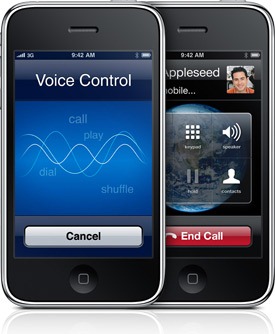
Voice Control is an exclusive feature of iPhone 3GS which enables its users to make phone calls and play music by using voice commands. Some folks over at this forum have released a Voice Control look-alike app for iPhone 3G and iPhone 2G which works and looks almost exactly as it is on iPhone 3GS.
Voice Control
You will need to have an unlocked and jailbroken iPhone for this to work. Please refer to the guide posted here in order to unlock and jailbreak your iPhone before you follow the steps below:
Step 1: Download WinSCP on Windows or Cyberduck on Mac. (download links given below.)
Step 2: Make sure you have OpenSSH installed on your iPhone:
  • Open Cydia. Touch on “Search” tab and then search for “OpenSSH”.
OpenSSH
  • Install “OpenSSH” and reboot your iPhone.
Step 3: Connect your iPhone with your computer. Make sure iTunes is not running.
Step 4: Start WinSCP on Windows or Cyberduck if you are on a Mac and enter the following details to login to your phone:
  • Hostname: The IP address of your iPhone. Setting –> WiFi –>
  • User name: root
  • Password: alpine
  • Protocol: SCP
Voice Control on iPhone 3G and 2G
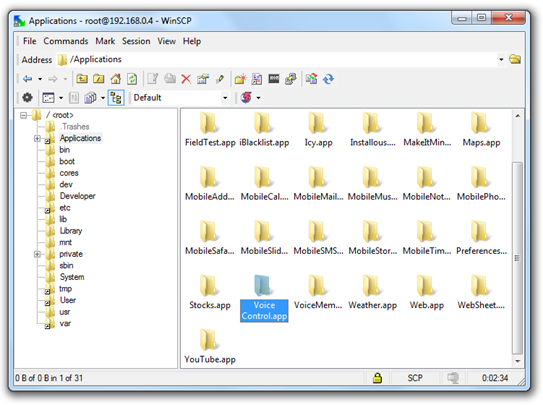
Step 5: Once you have logged in, browse to //Applications directory on your iPhone.
Step 6: Download VoiceControl.zip (download link given below). Extract “Voice Control.app” and copy it to your iPhone in this directory: //Applications
Voice Control on iPhone 3G and 2G
Step 7: Right-click on “Voice Control.app” which you just copied, click on Properties and change the permission to 755. Make sure you check “Set group, owner and permissions recursively” option as shown below:
Voice-Control-on-iPhone-3G[1]
That’s it! Restart your iPhone and you should now have a new app named “Voice Control” on your springboard. Start this new application on your iPhone 3G or 2G and simply search through your contacts, music and bookmarks by using voice commands just like iPhone 3GS!
Voice-Control-on-iPhone-3G-and-iPhone-2G[1]
If you liked this, then you may also like checking out:
You can follow me on twitter or join our facebook fanpage to keep yourself updated on all the latest iPhone jailbreaking and unlocking releases.

Download WinSCP for Windows 
Download CyberDuck for Mac 

Source: redmondpie