5% Off Powermat

Join The Community

Showing posts with label PwnageTool. Show all posts
Monday, February 7, 2011

Jailbreak iOS 4.2.1 on iPhone 4, 3GS Untethered with PwnageTool and Unlock with Ultrasn0w [How to Guide]


iPhone developer and hacker Nadeem97 has released PwnageTool bundles which can jailbreakiPhone 4 and 3GS untethered on iOS 4.2.1, in the process preserves the old 01.59.00 baseband for iPhone 4 and 05.13.04 baseband for iPhone 3GS so that you can unlock with the existing version of Ultrasn0w.

Thursday, December 16, 2010

How to Jailbreak Apple TV 2G on iOS 4.2.1 with PwnageTool [Guide]


The developer behind NitoTV app for jailbroken 2nd-gen Apple TV has released an unofficial PwnageTool bundle which can jailbreak Apple TV 2G on the latest iOS 4.2.1 firmware with the existing version of PwnageTool. This jailbreak however is limited to tethered-boot only for now.

Monday, November 29, 2010

Update iPhone 3GS / 3G Baseband to 06.15.00 with PwnageTool 4.1.3 for iOS 4.2.1 Unlock [Guide]


A special edition of PwnageTool (version 4.1.3) has been released which can update the baseband of iPhone 3GS & 3G to 06.15.00 so that they can be unlocked using Ultrasn0w 1.2 on the latest iOS 4.2.1 or iOS 4.1 firmware. This is important because basebands 05.14.xx and 05.15.xx are currently not unlockable using Ultrasn0w.

Saturday, October 23, 2010

How to Jailbreak Apple TV 2G on iOS 4.1 Using PwnageTool 4.1.2

The all new PwnageTool 4.1 brings support for the 2nd-generation Apple TV. You can use it to cook custom firmware for Apple TV 2G which in future will allow you to install third party apps from Cydia.

Thursday, October 21, 2010

How to Jailbreak Apple TV 2G on iOS 4.1 Using PwnageTool 4.1


The all new PwnageTool 4.1 brings support for the 2nd-generation Apple TV. You can use it to cook custom firmware for Apple TV 2G which in future will allow you to install third party apps from Cydia.
From the official blog:

Wednesday, October 20, 2010

Jailbreak iOS 4.1 with PwnageTool 4.1 [How to Guide]

PwnageTool 4.1 has been released. You can use it to cook custom firmware files without the upgraded (2.10.4 / 05.14.02) baseband for iPhone 4, 3GS and iPhone 3G running on iOS 4.1 so that you can unlock it using the existing version of Ultrasn0w. This version of PwnageTool also supports hacktivation.

PwnageTool 4.1 for Jailbreaking Apple TV 2G, iPhone 4, iPad and iPod touch 4G Now Available for Download

The iPhone Dev Team has finally released PwnageTool 4.1 which is based on recently released Geohot’s bootrom-based Limera1n exploit. This exploit enables this new version of PwnageTool to build custom firmware files for A4 devices like iPhone 4, iPad, Apple TV 2G and iPod touch 4G which was something, previously not possible.

Wednesday, June 23, 2010

Jailbreak iOS 4 iPhone 3GS, 3G and iPod touch 2G with PwnageTool 4.0 [How to Guide]


The official release of PwnageTool 4.0 for creating custom ipsw files for iOS 4.0 is now LIVE! The infamous iPhone Dev-Team has updated their PwnageTool for Mac to make it compatible with the newly released iOS 4 for iPhone 3GS, iPhone 3G and iPod touch 2G (non-MC model only). The custom .ipsw firmware files created with PwnageTool can update iPhone to iOS 4 without updating its baseband. iPod touch 2G MC model and iPod touch 3G is currently not supported.

iOS 4.0 Jailbreak
Some important notes from Dev-Team’s blog. MUST READ:
iPhone 3GS
Summary: Currently, PwnageTool only works on previously jailbroken 3GS devices with the old bootrom.
  • If you have a Jailbroken iPhone 3GS with the OLD BOOTROM and you DID NOT use Spirit to jailbreak then you can create the ipsw with PwnageTool 4.0 and restore with your jailbroken recovery mode. 
  • If you have an iPhone 3GS with the NEW BOOTROM this is NOT supported by PwnageTool 4.0
iPhone 3G
  • If you have a Jailbroken iPhone 3G at 3.1.2 (but not jailbroken with Spirit) then you should create the ipsw with PwnageTool 4.0 and restore from recovery mode or DFU mode.
  • If you have an out of the box iPhone 3G you should restore using a PwnageTool 4.0 ipsw using DFU mode.
  • If you have a Jailbroken 3.1.3 iPhone 3G it is very possible that this can fail from recovery mode, if this failure happens you will need to restore using DFU mode.
  • As an alternative to PwnageTool, you can use redsn0w on iPhone 3G (on both Windows and Mac) as mentioned in our last post.
IMPORTANT! Whenever you need to enter DFU mode, you will need to do so using PwnageTool.
iPod touch 2G
  • If you have an iPod touch 2G (non-MC model) that is jailbroken (but not with Spirit) then you can restore using recovery mode. 
  • As an alternative to PwnageTool, you can use redsn0w on non-MC iPod Touch 2G (on both Windows and Mac) as mentioned in our last post.
The following step-by-step instructions will help you jailbreak your iPhone running on iOS 4 with PwnageTool 4.0.
Step 1: Download and install the latest version of iTunes.
Step 2: Now start iTunes and sync your iPhone with your PC so that it backs-up all your important data including settings, apps, music, contacts and photos.
Step 3: Download PwnageTool 4.0 and the original iOS 4.0 for your version of iPhone or iPod touch (download links given below). Move all these files to your desktop.
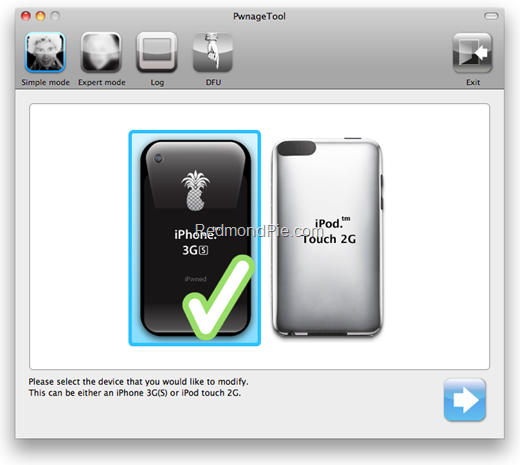
Step 4: Start PwnageTool 4.0 and select your device:
PwnageTool 4
Step 5: PwnageTool 4.0 will now automatically detect the correct firmware for your device as shown in the screenshot below:
iOS 4 Jailbreak (3)
Step 6: Click on "No" when PwnageTool asks you “Do you have an iPhone contract that would activate normally through iTunes?”:
PwnageTool 3.1.5 Jailbreak (1)
Clicking on “Yes” will update your baseband to the latest version. Click on “Yes” only if you are on an officially supported carrier like AT&T.
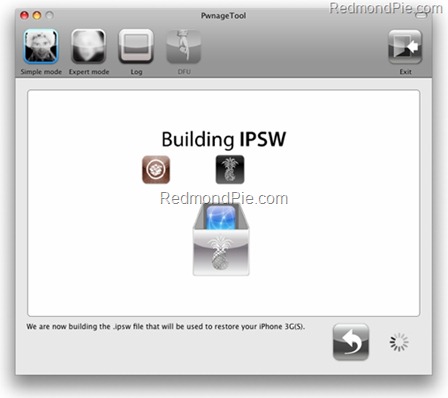
Step 7: PwnageTool will now create the custom .ipsw file for your iPhone which will be jailbroken.
PwnageTool 3.1.5 Jailbreak
The following ihaz Success” screen will confirm that the requested .ipsw file has been created successfully.
PwnageTool 3.1.5 Jailbreak
Step 8: Once the .ipsw file has been created, you will now have to restore your iPhone to this custom firmware 4.0 that you just cooked using PwnageTool 4.0 for your iPhone or iPod touch. Click on your phone icon from the sidebar in iTunes. Now press and hold left “alt” button (“Shift” button on Windows) on the keyboard and then click on “Restore” (Not “Update” or “Check for Update”) button in the iTunes and then release the “Shift” button.
This will make iTunes prompt you to select the location for your downloaded custom firmware 4.0. Select that custom .ipsw file and click on “Open”.
Step 9: Now sit back and enjoy as iTunes does the rest for you. This will involve a series of automated steps. Be patient at this stage and don’t do anything silly. Just wait while iTunes installs the new firmware 4.0 on your iPhone. Your iPhone screen at this point will be showing a progress bar indicating installation progress. After the installation is done, iPhone will restart automatically and you should now have a fully jailbroken iPhone running on iOS 4.
How to: Unlock iPhone on 4.0 (Any Baseband): Follow the complete step by step guide posted here to unlock iPhone 3GS and iPhone 3G, on iOS 4, on any baseband using Ultrasn0w 0.93.
Step 10: Once you are done with the unlocking and jailbreak process. You can now restore all your settings, apps, music, contacts and photos to the newly installed firmware version 4.0 by restoring the backup that you made in Step 2 from iTunes.
Alternate Guide for iPhone 3G and iPod touch 2G: Alternatively, iPhone 3G and iPod touch 2G (non MC model) users can use the latest version of Redsn0w too to jailbreak their iOS device on iOS 4. Step by step guide is posted here.
Disclaimer: This guide is for testing & educational purposes only. Follow it on your own risk. I’m not responsible for any loss of important data or malfunctioning of your iPhone.
Feel free to ask me any question here should you run into any problem during the jailbreak process.
Download iTunes 9.2 for Windows and Mac OS X
Download iOS 4 for iPhone 3GS, iPhone 3G and iPod touch
Download PwnageTool 4.0 for Mac OS X
You may also like to check out:
You can follow me on twitter to keep yourself updated on all the latest jailbreaking and unlocking releases.

Source: redmondpie

Thursday, June 10, 2010

Jailbreak iOS 4.0 with PwnageTool – Complete How to Guide


We did inform you about PwnageTool bundles which were released yesterday to jailbreakiPhone 3GS on iOS 4.0 (formerly iPhone OS 4), while preserving your baseband on the older 05.11.07 or 04.26.08 so that you can unlock it using ultrasn0w or blacksn0w. We got lots requests via twitter, facebook and email for full instructions on how to patch the existing version of PwnageTool so that it can work with iOS 4.0 GM release. And so here are the complete set of instructions for you to get it to work.

iOS 4.0 Jailbreak
Warning / Note: Perform the following instructions at your own risk only. I am not responsible if you end up bricking or locking your phone. Only proceed if you are an advanced user, and know what you are doing. Otherwise, wait for the official tools which would be out soon.
Supported Device(s):
iPhone 3GS ONLY, with older bootrom which has at least been jailbroken once with eitherredsn0wPwnageToolBlackra1n or Sn0wbreeze. If your phone is one of those with newer bootrom, and has only been jailbroken with Spirit, this is not for you. You will end up getting 1600/1604 error when restoring the custom cooked firmware via iTunes.
What is working and what isn’t?
I have tested it and it worked for me. But since I don’t rely on an unlock, I couldn’t test the ultrasn0w or blacksn0w part. Of all the reports that I have got from various testers, I can confirm that this method will preserve your baseband, but ultrasn0w or blacksn0wunlock wont work now as they need an update for iOS 4. So if you rely on an unlock, I will suggest you stay away from this, but if you desperately want to jailbreak your device, you can do it now while preserving your baseband but you will only be able to unlock it once ultrasn0w update is released in approx. two weeks time.
Step 1: Download PwnageTool 3.1.5 from the download link given here.
Step 2: Download the latest version of PwnageTool Bundles from msft.guy here and then extract it to your desktop.
Step 3: Download iOS 4.0 for iPhone 3GS, and iTunes 9.2 Beta for Mac. You can get the official bits if you are a registered developer, or from different content sharing sites around the web. Please do not ask for the download links, a simple Google will do it all !
Step 4: Download the updated Cydia bits (data.tar file) from here.
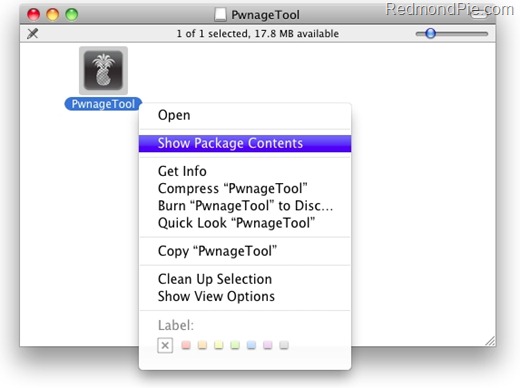
Step 5: Copy PwnageTool that you downloaded in Step 1 to your desktop. Right click, and then click on “Show Package Contents” as shown in the screenshot below.
iOS 4 Jailbreak (1)
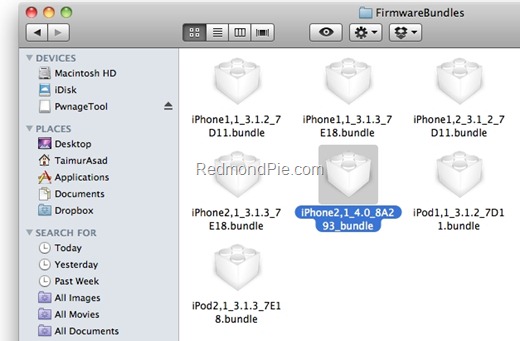
Step 6: Navigate to Contents\Resources\FirmwareBundles\ and pasteiPhone2,1_4.0_8A293_bundle.bundle file in this location and then simply close this folder.
iOS 4 Jailbreak (2)
Step 7: Now navigate again to Contents/Resources/CustomPackages/CydiaInstaller.bundle/and paste data.tar file (for Cydia) that you downloaded in Step 4.

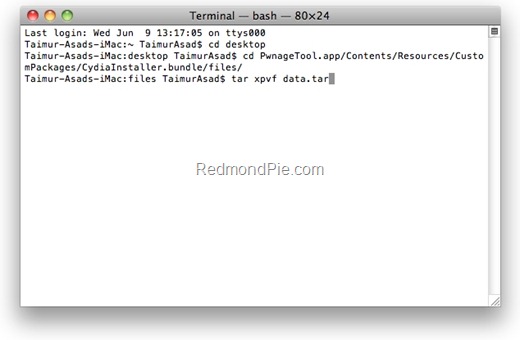
Step 8: Start “Terminal” program on your Mac and run the following commands:
cd desktop
cd PwnageTool.app/Contents/Resources/CustomPackages/CydiaInstaller.bundle
tar -xpvf data.tar
iOS 4 Jailbreak (4)
once you are done, close all the open windows.
Step 9: Now start this patched version of PwnageTool, Select iPhone 3GS as your device and you will now notice that PwnageTool will automatically detect iOS 4 firmware file as shown in the screenshot below.
iOS 4 Jailbreak (3)
Step 10: Simply follow Step 5 to Step 7 posted here to create a custom-cooked iOS 4 firmware file which will preserve your old baseband.
Step 11: Once the .ipsw file has been created, you will now have to restore your iPhone to this custom firmware 4.0 that you just cooked using PwnageTool 3.1.5 for your iPhone 3GS. Start iTunes 9.2 Beta, Click on your phone icon from the sidebar in iTunes. Now press and hold left “alt” (option) button on the keyboard and then click on “Restore” (Not “Update” or “Check for Update”) button in the iTunes and then release this button.
This will make iTunes prompt you to select the location for your custom firmware 4.0. Select that custom .ipsw file and click on “Open”.
Step 12: Now sit back and enjoy as iTunes does the rest for you. This will involve a series of automated steps. Be patient at this stage and don’t do anything silly. Just wait while iTunes installs the new firmware 4.0 on your iPhone. Your iPhone screen at this point will be showing a progress bar indicating installation progress. After the installation is done, iPhone will restart automatically and you should now have a fully jailbroken iPhone 3GS running on iOS 4.0.

You can follow me on twitter to keep yourself updated on all the latest iPhone jailbreaking and unlocking releases.

Source: redmondpie

Monday, October 26, 2009

Fix Missing Carrier logo After Jailbreak iPhone 3GS 3.1.2 Pwnage Tool


After jailbreak your iPhone 3GS firmware 3.1.2 with pwnage tool you must noticed that the carrier name or logo on the top left side of the status bar is missing. The reason why there is no carrier logo probably due to the baseband is not upgraded. PwnageTool keeps the old baseband 4.26.08 after updating. Many of you may used the Make it Mine trick but it’s ugly and it remains same when you enters to roaming. Another workaround editing the carrier.plist is also available but it takes time.
Carrier Logo Fixer is a new Tweak just landed on Cydia that allows to solve the problem of Carrier to all persons who have performed the Jailbreak your iPhone with PwnageTool and who have found themselves without the inscription of the name operator.

IMG_0111 


Just search and Install the Carrier Logo Fixer it’s available on Big Boss Repo which is by default by Cydia. We’ll continue to update you all with more details on Cydia tweaks. In the mean time stick with us on Twitter@iTune2iPhone.

Source: ihackintosh

Tuesday, October 13, 2009

All aboard the update train!


Here are some details on our latest version of PwnageTool for Mac OS X that adds support for the 3.1 release of the iPhone software for iPhone 3GS and iPod Touch 2G.
SUMMARY:
The iPhone 3GS is now supported in PwnageTool 3.1.3, assuming the phone was pwned at 3.0 or 3.0.1 - PwnageTool does not support the 3GS out of the box. If your iPhone 3GS has 3.1 preinstalled and is not Pwned then there is no tested jailbreak solution at the moment.
The iPod 2G is now supported in PwnageTool 3.1.3, assuming the iPod 2G was pwned at 3.0 or 3.0.1 - PwnageTool does not support the iPod 2G with 3.1 software out of the box.
DETAILS:
  1. GOLDEN RULE: If you are using a iPhone 3G or iPhone 3G(S) with ultrasn0w and rely on ultrasn0w to obtain cellular service then you should only update your device with an .ipsw that is made with the new PwnageTool. There are no second chances with this. You need to remember that PwnageTool will provide an upgrade path to newer versions of the iPhone software in the future.
  2. Please read all parts of this post before downloading and using these tools.
  3. Read items 1, 2 and 3 again and again.
  4. At the bottom of this post are the bittorrent files for the 3.1 capable version of PwnageTool.
  5. PwnageTool will work for the iPhone 3GS assuming you have already Pwned it at 3.0 or 3.0.1
  6. PwnageTool will work for the iPod touch 2G assuming you have already Pwned it at 3.0 or 3.0.1
  7. PwnageTool WILL work for Original iPhone (1st Generation), the iPhone 3G and iPhone 3G(S) and the iPod touch (1st Generation and 2nd Generation) but NOT the iPod touch 3rd generation.
  8. For 3G and 3G(S) users who are Pwned, PwnageTool is your key to updating in the future, just remember to never install an update directly from Apple, always use an .ipsw that has been created with PwnageTool.
  9. There is no Windows version of PwnageTool it is a Mac OS X tool only, we are not developing a Windows version of PwnageTool.
What’s a Baseband?
The ‘baseband’ is the generic nickname given to the internal components of the iPhone that handle the phone calls and Internet access. This ‘baseband’ is a tiny and unique independent computer system that runs inside your iPhone, it is separate to the main system that handles the applications (such as email and google maps) and it talks to the main part of the phone over an internal communications network.
Think of it like a cable modem or other peripheral that is attached to your home PC that needs occasional updates. When a software update is released and presented to you within iTunes the baseband is sometimes updated (to fix bugs or add new features).
The 3.1 update for the iPhone 3G and 3GS contains such an update, so running the vanilla updater straight away with iTunes will reprogram and update the baseband.
WHICH DEVICE DO I HAVE?
Read the description to identify your device, once you have correctly identified your device follow the specific instructions for that device as listed below.
SIM Free/SP Unlocked/Factory Unlocked iPhone 3G(S)
This applies if you bought your iPhone 3G(S) for $$$$$$$. This model of iPhone 3G(S) doesn’t have an Service Provider lock (aka factory unlocked) and you are able to put any SIM card into the phone and get service. Your phone is already unlocked so you do not need to worry about baseband updates, if your device was Pwned at 3.0 or 3.0.1 then you can use PwnageTool to create an ipsw and then use this to update and jailbreak your phone.
SIM Free/SP Unlocked/Factory Unlocked iPhone 3G
This applies if you bought your iPhone 3G for $$$$$$$. This model of iPhone 3G doesn’t have an Service Provider lock (aka factory unlocked) and you are able to put any SIM card into the phone and get service. Your phone is already unlocked so you do not need to worry about baseband updates,  if your device was Pwned at 3.0 or 3.0.1 then you can use PwnageTool to create a 3.1.ipsw and then use this to with iTunes to upgrade and jailbreak your phone.
iPhone 2G (1st Generation)
Use PwnageTool to do the magic and then restore with iTunes using your newly created .ipsw ‘nuff said, you don’t need to worry about anything, the baseband will be unlocked, the phone jailbroken.
iPod Touch 1G (Original iPod Touch)
Use PwnageTool to create a firmware image and restore with that .ipsw using iTunes.
iPod Touch 2G
Use PwnageTool to create a firmware image and restore with that .ipsw using iTunes, this will only work if you are already Pwned at 3.0 or 3.1. If you are at 3.1, downgrade to 3.0 and use redsn0w to Pwn 3.0 then you have an upgrade path using PwnageTool.
iPod Touch 3G
At this time PwnageTool does not support this device.
Official Bittorrent Releases -
Unofficial Mirrors
The following links are unofficial download mirrors, you download these at your own risk, we accept no responsibility if your computer explodes or if it becomes part of a NASA attacking botnet or even worse if your hands fall off mid-way during the use of these files. We do not check these links or archives and we accept no responsibility with regard to the validity of the files, or with other content these links provide or with the content that is on the linked site.  Always check the published SHA1 sums. We would prefer that you downloaded the official bittorrent release that is linked above, but you are welcome to try these if you really must. Mirror owners should email direct links only to blog@iphone-dev.org , please don’t place mirrors in the comments as they will be deleted.
Source: Developer Team