5% Off Powermat

Join The Community

Showing posts with label Restore. Show all posts
Sunday, December 12, 2010

New TinyUmbrella Update Will Allow You to Restore iPhone, iPad, iPod touch Without iTunes


The developer behind the well known TinyUmbrella program has confirmed that a new upcoming update to his program will allow you to restore your iPhone, iPad and iPod touch to a selected iOS firmware without having to use iTunes.
I’ve been working on a new and improved version of TinyUmbrella that will, among other things, allow you to restore your iDevice without iTunes. With the holiday season and work, this will take me a bit to get working the way I want it. I appreciate your patience and your support. You guys are awesome :) No ETAs yet but I’ll post updates here and on twitter.

Monday, August 30, 2010

How to Restore iPhone 4, 3GS on iOS 4.0.1 Successfully, Bypassing iTunes 1004, 1015 Error


So you have an iPhone 4 or iPhone 3GS (New Bootrom), running iOS 4.0.1, with SHSH blobs saved on Cydia, and you want to restore your iPhone again to iOS 4.0.1. Now that Apple has stopped signing iOS 4.0.1, you wont be able to restore your iPhone 4 on iOS 4.0.1 by simply pointing iTunes to iOS 4.0.1 ipsw file. Because if you do so, iTunes will throw an error: “This iPhone [your name] iPhone could not be restored. This device isn’t eligible for the requested build.

Thursday, June 24, 2010

Fix 1604, 1600 Error During iOS 4 Custom Firmware Restore in Tunes


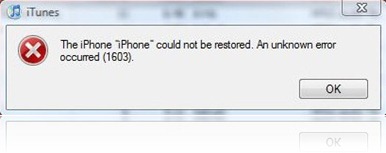
Some of you might have noticed the annoying 16041600 error when restoring to iOS 4custom firmware in iTunes which is built using PwnageTool 4.0 or 4.01. The error in question looks something on the lines of this.

The iPhone "[your iPhone]" could not be restored. An unknown error occurred.
16xx and 21 Error in iTunes during iPhone 3.1 Restore
Going through the comments posted here, I found this fix posted by one of our reader which I thought I should share it with you all. I haven’t tried this because I never got the error, but if you did get the error, let us know if the instructions posted below fixes the issue.
The instructions, as posted by Carlos Leopoldo are as follows:
Steps to fixing 1604 iPhone restore error:
1. There is no need to reinstall iTunes or whatever. Keep the same version that you have used to restore or backup previously.
2. Make sure that iPhone is disconnected from your computer and that iTunes is closed.
3. The following step of fixing 1604 iPhone restore error is Windows XP specific, if you are a Mac user, you may have to locate the folders yourselves as I am not sure: Go to folder C:\Documents and Settings\\Application Data\Apple Computer\iTunes\iPhone Software Updates. You will see one or more files. Cut and paste them somewhere else. Do not delete them in case the steps does not work for you, you can still copy them back to the folder. You can find out your username by doing a Ctrl-Alt-Del. If somehow you cannot find the folder, you are probably in the wrong user directory.
4. Launch iTunes and put your iPhone in recovery mode. Refer to this article on Unable To Restore iPhone on how to do put iPhone in recovery mode.
5. Proceed with restore and iTunes will download the update online. If you are downgrading to a lower version, do step 3 and leaving only the firmware file that you want to downgrade to. Double click on the file and iTunes will begin the restore.
Please do share your results with us in the comments section below. Thanks.
You may also like to check out:
You can follow me on twitter to keep yourself updated on all the latest jailbreaking and unlocking releases.

Source: redmondpie

Monday, May 10, 2010

Recover Deleted Photos from iPhone / iPad After Spirit Jailbreak


The initial release of Spirit had this bug, which accidently deleted all photos from the iDevice which you used to jailbreak with it. If you were wise enough to make a backup before jailbreaking your device, you can now recover it using iPhone Backup Extractor.
Follow the step by step guide posted below to recover your deleted photos from iPhone, iPad or iPod touch after jailbreaking it with Spirit.
Step 1: Install OpenSSH on your device. Instructions for installing OpenSSH on iPad can be found here, and for iPhone/iPod touch can be found here.
Step 2: Download and install iPhone Backup Extractor.
(Download links: Windows 32-bit64-bit – Mac OS X)
Step 3: Run iPhone Backup Extractor and select the last backup which you made before jailbreaking your device using Spirit.
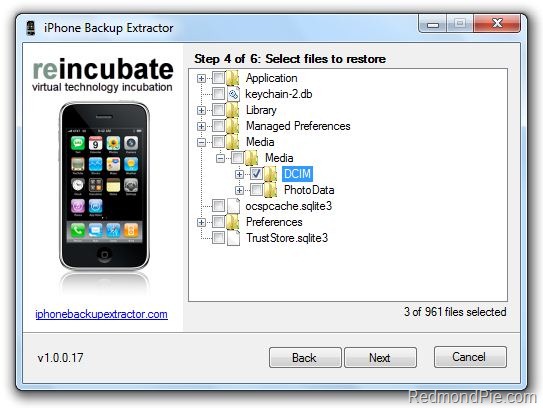
Step 4: Navigate to Media/Media/DCIM and select this folder. Click ‘Next’ to save the files locally on your hard drive.
iPhone Backup Extractor (1)
Step 5: Download and install Cyberduck for Mac or WinSCP for Windows. Enter the following details to login to your iPad:

Cyberduck
  • Server: The IP address of your iPad. Settings –> WiFi –>
  • Username: root
  • Password: alpine
  • Protocol: SFTP (SSH File Transfer Protocol)
WinSCP
  • Hostname: The IP address of your iPad. Setting –> WiFi –>
  • User name: root
  • Password: alpine
  • Protocol: SCP
Step 6: Navigate to /User/Media/ directory and copy over the folder DCIM folder which you just extracted from the backup and to this location.
WinSCP - iPhone 3GS
Step 7: Reboot your iPhone/iPad/iPod touch.
That’s it ! you should now have all your photos back like you did before Spirit jailbreak.
You may also like to check out:
You can follow me on twitter to keep yourself updated on all the latest from iPhone, iPad and iPod touch jailbreaking and unlocking releases.

Source: redmondpie