5% Off Powermat

Join The Community

Showing posts with label Error. Show all posts
Tuesday, November 16, 2010

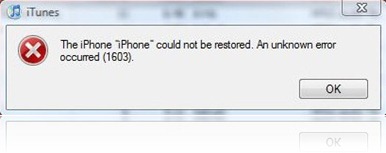
How to Fix 1604, 1601, 1600, 16xx Error During iOS 4.1 Custom IPSW Firmware Restore in iTunes with iREB 4.1

New version of iREB for all iOS 4.1 devices is now available for download. You can use it to bypass 1604, 1603, 1602, 1601, 1600 error in iTunes during custom iOS 4.1 firmware restore which has been created using either Sn0wbreeze or PwnageTool.

Thursday, September 23, 2010

Download Sn0wbreeze 2.0.1 to Fix iTunes Error 37 on iOS 4.1 Jailbreak

Sn0wbreeze has just been updated to version 2.0.1 to fix iTunes Error 37 which has been problematic for some iPhone 3G users when restoring to the custom firmware file. According to Deon Yeang on Redmond Pie’s facebook page, the error occurs when you are in midway of restoring to the custom cooked firmware using iTunes.

Jailbreak iPod touch 3G / iPod touch 2G (MC Model) on iOS 4.1 with Sn0wbreeze 2.0.1 [Guide]

Sn0wbreeze 2.0 was released earlier today. It brings support for a bunch of devices running on iOS 4.1. These include:

Thursday, June 24, 2010

Fix 1604, 1600 Error During iOS 4 Custom Firmware Restore in Tunes


Some of you might have noticed the annoying 16041600 error when restoring to iOS 4custom firmware in iTunes which is built using PwnageTool 4.0 or 4.01. The error in question looks something on the lines of this.

The iPhone "[your iPhone]" could not be restored. An unknown error occurred.
16xx and 21 Error in iTunes during iPhone 3.1 Restore
Going through the comments posted here, I found this fix posted by one of our reader which I thought I should share it with you all. I haven’t tried this because I never got the error, but if you did get the error, let us know if the instructions posted below fixes the issue.
The instructions, as posted by Carlos Leopoldo are as follows:
Steps to fixing 1604 iPhone restore error:
1. There is no need to reinstall iTunes or whatever. Keep the same version that you have used to restore or backup previously.
2. Make sure that iPhone is disconnected from your computer and that iTunes is closed.
3. The following step of fixing 1604 iPhone restore error is Windows XP specific, if you are a Mac user, you may have to locate the folders yourselves as I am not sure: Go to folder C:\Documents and Settings\\Application Data\Apple Computer\iTunes\iPhone Software Updates. You will see one or more files. Cut and paste them somewhere else. Do not delete them in case the steps does not work for you, you can still copy them back to the folder. You can find out your username by doing a Ctrl-Alt-Del. If somehow you cannot find the folder, you are probably in the wrong user directory.
4. Launch iTunes and put your iPhone in recovery mode. Refer to this article on Unable To Restore iPhone on how to do put iPhone in recovery mode.
5. Proceed with restore and iTunes will download the update online. If you are downgrading to a lower version, do step 3 and leaving only the firmware file that you want to downgrade to. Double click on the file and iTunes will begin the restore.
Please do share your results with us in the comments section below. Thanks.
You may also like to check out:
You can follow me on twitter to keep yourself updated on all the latest jailbreaking and unlocking releases.

Source: redmondpie

Monday, May 10, 2010

Spirit Jailbreak Tool Updated. Fixes Photo Deletion Bug and Errors on Windows


he all-in-one untethered jailbreak tool, which was released yesterday has been updated. An issue which was reported earlier where it deleted all the saved photos on the device once the jailbreak was complete has been fixed. This update to Spirit resolveserror code c0000005 which some Windows users were facing.

Spirit for iPad
The official change log is as follows.
Update (May 3): I’ve updated the jailbreak tool. It no longer deletes photos (sorry!) and should resolve the issue with error code c0000005. (If you still get that error with the new version, try setting compatibility mode to Windows 95.)
Check out our following step by step guides to jailbreak iPhone, iPad and iPod touch – untethered !
Download Spirit for Windows and Mac
You may also like to check out:
You can follow me on twitter to keep yourself updated on all the latest jailbreaking and unlocking releases.

Source: redmondpie

Tuesday, December 8, 2009

Fix ultrasn0w repo error in Cydia


Now days iPhone users are suffering to unlock their jailbroken iPhone on OS version 3.0 & 3.0.1 because  http://repo666.ultrasn0w.com is not working and getting bad source error while adding this source in Cydia.

You can search this error with Google to fix this issue and to unlock the jailbroken iPhone.


Follow the steps to fix this issue:


1. Add http://sinfuliphonerepo.com source in Cydia
2. Find Ultrasn0w
3. Install it
4. Reboot iPhone

That's it, now your iPhone should be unlocked. If not, follow the steps 5 & 6.

5. Make sure Ultrasn0w is in Cydia, manage, packages
6. Reboot iPhone again and your iPhone should be unlocked

Alternatively you can do as shown below:


Untrasn0w Manual Install Instruction:

1. Download Ultrasn0w version 0.92 DEB from here
2. SSH into iPhone
3. Place deb file in var/root/Media/Cydia/AutoInstall (If Cydia/AutoInstall dont exist, create them)
4. Reboot iPhone AND respring

5. Make sure Ultrasn0w is in Cydia, manage, packages
6. Reboot iPhone again and phone should be unlocked