5% Off Powermat

Join The Community

Showing posts with label ECID SHSH. Show all posts
Monday, July 5, 2010

Jailbreak iOS 4 on iPhone 3GS (New Bootrom) with SHSH Blobs [How to Guide]


iH8sn0w – the developer behind popular iPhone jailbreak tools such as sn0wbreeze for iPhone 3.1.3 / 4.0f0recast and BlackBreeze has just written a detailed tutorial on how to jailbreak iPhone 3GS (with new bootrom) on iOS 4. But as I mentioned earlier, there is a little catch to it.
1) it is a tethered jailbreak (whenever you turn off your phone, you will need to re-connect it to a computer to be able to turn it back on) and
2) it will only work for those devices which have their SHSH blobs (ECID SHSH) files for3.1.2 (NOT 3.1.3) saved on Cydia.

Jailbreak iPhone 3GS New Bootrom
If you meet all the requirements, and have lots of patience, you can follow the guide posted below to jailbreak your iPhone 3GS (with new bootrom) on iOS 4.
Warning Note: All the standard warnings apply. This is for advanced users only. Only proceed if you think you know your iPhone inside out.
Pwning 4.0 on New Bootrom 3G[S] w/3.1.2 SHSH Blobs
I wrote this all on the road with my iPad, so sorry if there is any major Grammar errors. If anyone points out any errors, I’ll fix it up. Anyways…
——-
I figured making a tool would take a bit too long. So, i’m going to write up this tutorial. It isn’t recommended for regular users.
**BEFORE PROCEEDING, ENSURE THAT YOU HAVE YOUR PHONE BACKED UP!**
——-
WHAT YOU WILL NEED:
* An iPhone 3G[S] — new bootrom
* 3.1.2 SHSH blobs.
* difrnt’s iBSS grabber (http://bit.ly/3QLb5S)
* Payload Pwner for the 3GS. (http://www.mediafire.com/?jy0wzomw2jk)
sn0wbreeze V1.6.2
* iBooty (http://www.mediafire.com/?qwzzjhziwz0)
* LibUSB (64-Bit users read carefully!!!)
* 3.1.2/4.0 3GS firmware downloaded. [Download iPhone 3.1.2 / DownloadiOS 4.0]
——-
STEP A : Grabbing your 3.1.2 iBSS file.
Pointing your hosts :
I : If you have your shsh blobs saved on Cydia/Saurik’s server then follow this tutorial. — http://saurik.com/id/12
II : If you have it saved with TinyUmbrella, then download the GUI here. — http://thefirmwareumbrella.blogspot.com/
——-
Restoring to grab the iBSS file.
I : Place your device in DFU.
II : Start up the iBSS/iBEC grabber.
III : Put the save folder on a new folder on your desktop.
IV : Hit "Start Monitoring".
V : Now go back to iTunes and do SHIFT + Restore. Then browse for your 3.1.2 IPSW. You will need to restore
to 3.1.2 in order to pwn 4.0.
——-
Saving your iBSS
I : After Restoring, Go to the folder that you have specified to save your iBSS file.
II : You will see folders like (Per**.tmp). Go into one of them, and you’ll see a folder called "Firmware". Go there. Then go to the folder "dfu".
III : Copy the iBSS file to a safe place, then you can remove the folder created by the iBSS Grabber.
——
STEP B : Creating custom 4.0 firmware.
I : Download sn0wbreeze from http://ih8sn0w.com and create your custom 4.0 ipsw. [How to Guide]
*Ignore the warnings after browsing for the ipsw.*
——
STEP C : Installing LibUSB for iRecovery
Run this mini tool to detect your O/S + Arch. — Windows + Arch. Detector  (http://www.mediafire.com/?imyzm2t3zam)
*********
WARNING : IF LIBUSB IS NOT INSTALLED PROPERLY, YOUR USB MIGHT NO LONGER WORK!
*********
Windows XP Users download this installer — LibUSB Installer (http://www.mediafire.com/?zyy0mjthhij)
*********
Windows Vista/7 users RUNNING 32-Bit:
* Download the installer (http://www.mediafire.com/?zyy0mjthhij) and run it in compatibility mode for Windows XP.
*********
If you are a 64-Bit user, follow this tutorial – (http://bit.ly/9N423f)
*********
Once LibUSB is installed iRecovery should be able to function now.
——-
STEP D : Pwning iBSS + iBoot
I : Download this easy tool here — Payload Pwner for 3GS // It will help you create the payloads.
**SAVE THE PAYLOADS WHERE iBooty is.**
——-
STEP E: iBooty Prep.
Most of you know of the utility "iBooty" that I made for Aki_nG.
It will work as long as you place all of the correct files there.
I : Download iBooty GUI here — iBooty for 3GS (http://www.mediafire.com/?qwzzjhziwz0) and Extract it.
II : Extract your Custom IPSW created by sn0wbreeze with 7-Zip or another un-archiver.
III : Grab the kernelcache and bring it into the same folder as ibooty.
Also grab the iBEC from the folder "Firmware\dfu\iBEC.n88ap.RELEASE.dfu"
IV :
* Rename your iBSS 3.1.2 signed to "ibss312.dfu"
* Rename your Kernel 4.0-Custom to "kernel.40"
* Rename your iBEC 4.0-Custom to "ibec40.dfu"
======
Your folder should look like this :
- iboot.payload <– Created with Payload Pwner.
- exploitibss312 <– Created with Payload Pwner.
- ibec40.dfu <– Grabbed from Custom IPSW made by sn0wbreeze.
- irecovery.exe <– Comes with iBooty.
- readline5.dll <– Comes with iBooty.
- iBooty.exe <– Comes with iBooty.
- ibss312.dfu <– THIS NEEDS TO BE YOUR iBSS from the restore!
- kernel.40 <– Grab from Custom IPSW made by sn0wbreeze.
- sn0w.img3 <– Comes with iBooty.
======
——-
STEP F: Restoring to 4.0 + Booting
——-
*MAKE SURE YOU ARE ON 3.1.2 WHEN DOING THIS*
I : Run iBooty and Select "Prepare Device for Custom Firmware". Run the Process and if you see a snow flake, you can proceed!
II : Now open iTunes and restore to the custom ipsw.
***WHEN DONE, YOUR DEVICE WILL HAVE A BLACK SCREEN AND NOT BOOT! ITS IN A DFU LOOP [THIS IS NORMAL!]***
——-
STEP G : Booting
I : Just Re-Run iBooty and select "Boot It". If all goes well it will boot!
——-
Enjoy!
——-
Once you have jailbroken your phone, you can unlock it using ultrasn0w 0.93 (on anybaseband), guide for which is posted here.
Again, this is currently for iPhone 3GS with new bootrom only. Apparently, a similar guide for iPod touch (MC models) and iPod touch 3G is also in works. Oh and a tool to automate all this procedure will be released (no ETA) some time later. Stay tuned for more!
You may also like to check out:
You can follow me on twitter to keep yourself updated on all the latest jailbreaking and unlocking releases.

Source: redmondpie

Sunday, June 27, 2010

How to Save iPhone 4 SHSH Blobs (ECID SHSH) on iOS 4


TinyUmbrella has been updated to support iPhone 4 (running iOS 4). It is important to save SHSH Blobs (ECID SHSH) files of your iPhone 4 now because of all the rumors going around regarding a new firmware update, which could be released as early as next week. If you have your SHSH blobs on file, you can downgrade anytime to iOS 4 from iOS 4.01should you need to.

iPhone 4
Some important notes for iPhone 4 SHSH blobs before you proceed.
If you desire to restore your iPhone 4 to iOS 4, make sure you uninstall Wi-Fi Sync before trying to do so.
In order to obtain your SHSH you MUST have the device attached.
Restores on the iPhone 4 are not perfect. They error out locally but the restore does complete – it just needs to be helped along. (Much like downgrades where the baseband update fails). I’ll try to put the functionality in TinyUmbrella to fix this.
For Mac users: Copy the app OUT OF THE DMG. The reason you are getting the repeating password prompts is because you ran the app from within the DMG. This is bad. Copy it anywhere and you’ll be fine.
TinyUmbrella
From here onwards, you can simply follow the steps that i have posted here for iPhone 3GS and iPod touch. These steps are essentially the same for iPhone 4 except for some of the notes that I have posted above. Oh and if you want to learn more about what SHSH blobs or ECID SHSH files are, you can do so by reading one of my old article posted here.
Download TinyUmbrella (Windows)
Download TinyUmbrella (Mac OS X)
You may also like to check out:
You can follow me on twitter to keep yourself updated on all the latest jailbreaking and unlocking releases.

Source: redmondpie

Wednesday, June 23, 2010

Save SHSH Blobs (ECID SHSH) of iOS 4 on Windows and Mac


TinyUmbrella has been updated to support the new iOS 4 on iPhone 3GS and iPod touch 2G/3G. iPad is also supported but iOS 4 for iPad isn’t available yet. iPhone 3G is not supported because you don’t need to save SHSH blobs for iPhone 3G, and older iPod touch (non MC model).
This is important if you want to jailbreak (by downgrading) your device again should Apple patches the exploit used by the new unlock and jailbreak tools. It is also important to note that you wont be able to save SHSH blobs once Apple has released the new firmware (iOS 4.0.1 / iOS 4.1). This is because Apple will stop signing the iOS 4 firmware once the new one has been released, hence negating you to save your iOS Device SHSH files.
Use the step by step guide posted below to save your SHSH blobs (ECID SHSH) of iPhone 3GS, iPod touch 2G/3G on iOS 4 without having to jailbreak your device.
Step 1: Download the latest beta version of TinyUmbrella for WindowsMac or Linux.
Step 2: Make sure you are running iTunes > 9.0. iTunes 9.2 is recommended.
Step 3: Start the program and plug in any ONE of the supported iDevices (iPhone/iPad/iPod touch).

SHSH Blobs iOS 4
Step 4: Click on “Save My SHSH”. TinyUmbrella will now grab the signature for you.
SHSH Blobs iOS 4 (1)
It will be enabled again once a ticket has been generated to save it to saurik’s server.
SHSH Blobs iOS 4 (2)
This is it ! You should be safe now. Make sure you save the signature for your iPhone, iPad and iPod touch on file before Apple releases the next firmware.
You may also like to check out:
You can follow me on twitter to keep yourself updated on all the latest jailbreaking and unlocking releases.

Source: redmondpie

Tuesday, June 8, 2010

Save SHSH Blobs (ECID SHSH) of iPhone 3.1.3 and iPad 3.2


Since Spirit jailbreak release is on the horizon, it is time to save your SHSH blobs so that you can jailbreak (by downgrading) your device again should Apple release a new firmware once the exploit is public. The following two paragraphs explains what are SHSH blobs and why is it important to save them now.
So first up, what exactly is SHSH blob or ECID SHSH? Well, it is basically is a unique signature which is checked against Apple servers whenever you decide to restore the firmware on any of your iDevice (iPhone, iPad and iPod touch). Once a new firmware is released, Apple stops signing the older firmware, hence making it impossible to restore back to the older firmware from iTunes.
Now to “why is it important to save SHSH blob”: The creator of Cydia has setup a new server which basically mimics Apple’s verification server and can save your older signature (SHSH blob) so that you can downgrade or restore back to the older firmware. This isimportant because if you don’t have your SHSH blob saved, and accidently update to new firmware, you’ll loose your jailbreak and furthermore, you wont be able to downgrade back to older firmware to re-jailbreak your device.


Since Spirit is a userland jailbreak, the exploit it uses is very likely going to be patched in the form of new firmware. It is important to save your iPhone / iPad / iPod touch SHSH blobs now so that you don’t loose the ability to downgrade (and re-jailbreak) your device should you accidently upgrade.
There are number of ways you can do this. You can either use AutoSHSHFirmware Umbrella or directly go through saurik’s server. The following guide uses AutoSHSH to save SHSH blobs of iPhone, iPad and iPod touch.
Step 1: Download the latest version of AutoSHSH. (Download link).
Step 2: Start the program and plug in any ONE of the iDevices (iPhone/iPad/iPod touch) in recovery mode. To do this, turn off your device and hold down the “Home” button while connecting the USB cable until you see “Connect to iTunes” message and logo on your iPhone.
SHSH Blobs
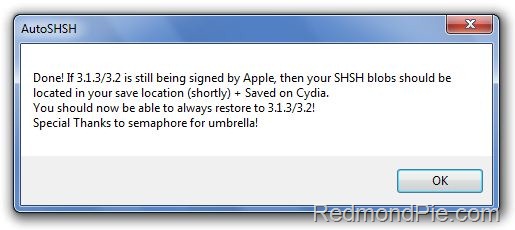
Step 3: Click on “Grab my SHSH Blobs Automatically”. AutoSHSH will now grab the signature for you. Once done, it will ask you to save it locally. Make sure you keep it in a safe place as you might need it when you want to downgrade back to the older firmware. AutoSHSH will also automatically upload the signature file to saurik’s server.
SHSH Blobs (1)
This is it ! You should all be safe now. Spirit jailbreak release is imminent now. Make sure you save the signature for your iPhone, iPad and iPod touch on file before Apple update the iOS 4.


You can follow me on twitter to keep yourself updated on all the latest from Apple.

Source: redmondpie