5% Off Powermat

Join The Community

Showing posts with label FaceTime. Show all posts
Tuesday, August 3, 2010

Enable iPhone 4 FaceTime Video Calls Over 3G with My3G !! [Jailbreak Required]


e all have been waiting for this!! And now that iPhone 4 jailbreak has been released to public, the much awaited update to My3G app has been released !! With this new updated version of My3G for iPhone 4, you can now make FaceTime video calls over your cellular 3G network which otherwise isn’t possible. This in my opinion is a killer app and will alone be worth jailbreaking your iPhone 4 for.

My3G for iPhone 4 FaceTime
Official description of the app is as follows.
Facetime over 3G!!!!
My3G: Take back your 3G! My3G makes Apps believe that they are on WiFi instead of 3G. With My3G, you can now watch HiDef YouTube videos, use Skype/Fring/Other VOIP apps over the 3G network!
Features:
- In-App popup request to enable/never ask for My3G to be enabled for that app
- In-App indicator when My3G changes the network from 3G to WiFi
- Ability to select which apps are My3G enabled and not.
- Default Apps – no configuration for the most popular apps!
- SBSettings Toggle! You can temporarily enable My3G for all apps or toggle back using your defined Apps list
- Dynamic enablement – Higher successs rate (near 100%) then 3G Unrestrictor (which does one off solutions for apps). My3G enables 3G indicators more dynamically.
4.1 Updates
=============
- Facetime over 3G!!!
You will of course need a jailbroken iPhone to get it installed. Follow our complete step by step guide posted here to jailbreak iPhone 4 on iOS 4.0.1 / 4.0 using JailbreakMe 2.0. Once you are done with the jailbreak, goto Cydia, search for “My3G” app and install it. My3G will also install “RockApp” as a part of its package.

My3G for iPhone 4 is available on RockApp fo USD $3.99 and is worth every penny of yours!
Check out our iPhone Apps Gallery and iPad Apps Gallery to explore more apps for your iPhone and iPad.

You can follow me on twitter or join our facebook fanpage to keep yourself updated on all the latest jailbreaking and unlocking releases.

Source: redmondpie

Monday, August 2, 2010

Fix FaceTime and MMS Problem on iPhone 4 After Jailbreaking with JailbreakMe 2.0


I just found out about this fix from Redmond Pie’s Facebook fanpage and thought I should share it with you all. If you cant wait for JailbreakMe update, here is a quick possible fix for FaceTime and MMS issue on iPhone 4 after jailbreak using JailbreakMe 2.0 (Star). Simply follow the step by step guide below to fix the issue.


Step 1: Follow the step by step guide posted here to jailbreak your iPhone 4, 3GS on iOS 4.0.1 / 4.0 using JailbreakMe.


Step 2: Once you are done with the jailbreak, start “Cydia” on your iPhone.


Step 3: Touch on “Manage” tab on the bottom.


Step 4: Now touch on “Sources” as seen in the screenshot below:

Cydia iPhone 4 (1)
Step 5: Touch on “Edit”, and then on “Add”. You should now be prompted to enter a url source as seen in the screenshot below. Type“http://iphonedelivery.advinux.com/cydia/” and click on“Add Source”.
Cydia iPhone 4 (2)
Cydia will now automatically update your sources by following a series of automated steps.
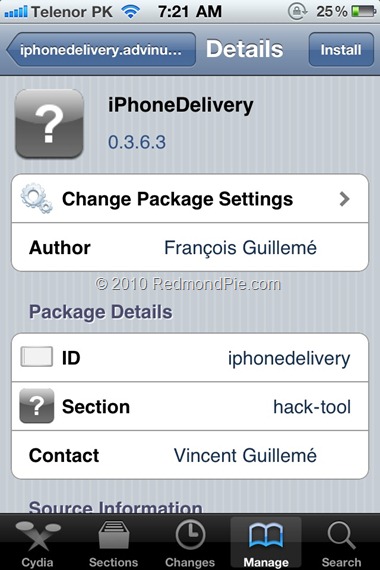
Step 6: After installation is completed. Search for “iPhoneDelivery” in Cydia and install this application. This app apparently fixes both the FaceTime and MMS issue.
Cydia iPhone 4 (3)
Let us know how this one goes for you in the comments section below. [Thanks Ran Cohen for the share on Redmond Pie’s Facebook Fanpage]


UPDATE 1: JailbreakMe has been updated which has fixed all the problems related to FaceTime and MMS. If you are doing a fresh jailbreak, you will not have any of these issues. Existing users will need to do a “Complete Upgrade” of Cydia followed by a reset of Network Settings. To do this, simply fire up Cydia and let the loading to finish. It will now automatically ask you to update Cydia. Touch on “Complete Upgrade” and reboot the device once it is done. Go to Settings –> General –> Reset –> Reset Network Settings. Reboot the device again. The problem should be fixed now.

You can follow me on twitter to keep yourself updated on all the latest iPhone jailbreaking and unlocking releases.


Source: redmondpie