5% Off Powermat

Join The Community

Showing posts with label iOS 4. Show all posts
Thursday, September 9, 2010

Download iOS 4.1 Final Version for iPhone 4, 3GS, 3G, iPod touch

Apple has just released the very final version for iOS 4.1 for iPhone 4, iPhone 3GS, iPhone 3G and iPod touches. This version of iOS brings a number of new features for iPhone and iPod touch users including: Game Center, HDR Photography for iPhone 4, iTunes Ping, HD video upload on YouTube and MobileMe for iPhone 4 and iPod touch 4G and so on. If you want to keep your jailbreak and unlock, you better not update to this latest firmware now until and unless new jailbreak and unlock tools are available for download.
To update to iOS 4.1, all you need to do is to connect your iPhone or iPod touch with your computer via USB and start iTunes. You should now see a message as shown below. Simply click on “Download and Install” button to get on to the new firmware.


Monday, August 2, 2010

Jailbreak iPhone 4, 3GS, 3G on iOS 4 / 4.0.1 and iPad on iOS 3.2.1 with JailbreakMe 2.0


JailbreakMe 2.0 Star is the name! – The userland jailbreak for iPhone 4, iPhone 3GS, 3G on iOS 4 / 4.0.1, iPod touch on iOS 4, and iPad on iOS 3.2.1 is out !!. It is a browser basedjailbreak, all you have to do is to browse to http://jailbreakme.com from your iOS device tojailbreak it. Servers are probably thrashed right now. Keep trying until you successfully load the page. We will be back with quick how-to guides soon. Stay tuned for that !!

JailbreakMe
UPDATE 1: Full list of supported devices is as follows [Thanks to Daniel Le for posting this on Redmond Pie’s Facebook fanpage]
iPod 1G on 3.1.2
iPod 1G on 3.1.3
iPod 2G on 3.1.2
iPod 2G on 3.1.3
iPod 2G on 4.0
iPod 3G on 3.1.2
iPod 3G on 3.1.3
iPod 3G on 4.0
iPad on 3.2
iPad on 3.2.1
iPhone 3G on 3.1.2
iPhone 3G on 3.1.3
iPhone 3G on 4.0
iPhone 3G on 4.0.1
iPhone 3G[S] on 3.1.2
iPhone 3G[S] on 3.1.3
iPhone 3G[S] on 4.0
iPhone 3G[S] on 4.0.1
iPhone 4 on 4.0
iPhone 4 on 4.0.1
UPDATE 2: Early reports confirms that this new jailbreak is breaking FaceTime and MMS. We will let you know as soon as we have more on this.
UPDATE 3: Complete How-to Guide to Jailbreak iPhone 4, iPhone 3GS (New Bootrom) with JailbreakMe 2.0 (Star) Is up! Follow all the instructions posted here.
UPDATE 4: Complete How-to Guide to Jailbreak iPod touch 3G and iPod touch 2G MC Model with JailbreakMe 2.0 (Star) Is up! Follow all the instructions posted here.
UPDATE 5: Those of you who are having problems with FaceTime and MMS should follow the steps
posted here to fix the issue.

Source: redmondpie

Sunday, July 18, 2010

Downgrade iOS 4.1 iPhone 4, 3GS, 3G and iPod touch to iOS 4 / iPhone 3.1.3 / 3.1.2 [How to Guide]


iOS 4.1 Beta was seeded to developers yesterday. Since the iOS 4.1 is currently onlyjailbreakable on iPhone 3G and iPod touch 2G (non-MC model), you may want to downgrade your other iOS based devices from iOS 4.1 so that you can jailbreak them on iOS 4, or iOS 3.1.3 / 3.1.2 (formerly iPhone 3.1.3 or 3.1.2).
The following step by step guide will help you rollback / downgrade to iOS 4, iPhone 3.1.3 and 3.1.2 from iOS 4.1 Beta as long as you have SHSH blobs saved for the respective firmwares for iPhone 4, iPhone 3GS, iPhone 3G and iPod touches.

Downgrade iOS 4.1
Step 1: Download the required old ipsw firmware files. (Download links: iOS 43.1.3,3.1.2)
Step 2: Put your device into DFU mode (not recovery mode).
  • Connect your iPhone to your computer.
  • Turn iPhone off.
  • Start iTunes.
  • Hold Power and Home buttons together for 10 seconds or so.
  • Release Power button but keep holding the Home button until your computer recognizes a new USB device.
  • iTunes will now recognize your iPhone.
Note: Your iPhone screen at this time should be blank (black in color), if not, then you are most likely in Recovery Mode, not DFU mode.
(Step 3 is for iPhone 4 and iPhone 3GS users only. If you are on iPhone 3G or iPod touch 2G (non-MC model), skip Step 3 and continue from Step 4)
Step 3: This step is applicable to iPhone 4iPhone 3GS, iPod touch 3G and iPod touch 2G(MC model) which have their SHSH blobs (ECID SHSH) saved on Cydia for the firmware you downgrading on. If you don’t have your SHSH files saved, you cannot downgrade the mentioned devices.
So what we will do is to trick iTunes into thinking that it is watching Apple servers, while in real, we are going to change the address to Saurik’s server.
  • Navigate to C:\Windows\System32\drivers\etc\ and locate “hosts” file.
Hosts file in Windows
Mac users can get to “/etc/” directory by going through “Go –> Go to Folder” from Finder.
Hosts file in OS X
  • Open this “hosts” file in Notepad (for Windows) or TextEdit (for Mac OS X) and add this
74.208.105.171 gs.apple.com
line as shown in the screenshot below:
21
Now simply save this file and you are good to go!
NOTE for Windows 7 and Vista: Start “Notepad” with Administrator privileges by right clicking on “Notepad” app, and click on “Run as Administrator“ option.
Step 4: You will now have to restore your iPhone or iPod touch to the firmware you downloaded in Step 1. Click on your phone icon from the sidebar in iTunes. Now press and hold left “alt” (option) button on Mac (Left “Shift” button on Windows) on the keyboard and then click on “Restore” (Not “Update” or “Check for Update”) button in the iTunes and then release this button.
iTunes
This will make iTunes prompt you to select the location for your downloaded firmware file. Select that ipsw file and click on “Open”.
Step 5: Now sit back and enjoy as iTunes does the rest for you. This will involve a series of automated steps. Be patient at this stage and don’t do anything silly. Just wait while iTunes installs firmware on your iPhone or iPod touch. Your iPhone screen at this point will be showing a progress bar indicating installation progress. Now at some point, iTunes will throw 1011, 1013 or 1015 error at you. This is normal, just ignore this error as the firmware has already been successfully installed on the device.
Step 6: Now you will need to exit your device from Recovery Mode. To do this, download a program called RecBoot (Windows / Mac). Run it and the click on “Exit Recovery Mode” button. Your device will now restart normally.
RecBoot
This is it, you should now be able to jailbreak your device on this older OS.  For iPhone 3.1.2 firmware, you can use blackra1nPwnageToolredsn0wsn0wbreezeultrasn0wand blacksn0w to jailbreak and unlock your iPhone and iPod touch. For iPhone 3.1.3 firmware for iPhone 2G, 3G, 3GS and iPod touch 1G/2G, you can use redsn0w 0.9.3,redsn0w 0.9.4sn0wbreezePwnageTool 3.1.5. Unlocking can be done using ultrasn0w orblacksn0w. iPhone 3.1.3 (on devices with new bootrom and baseband) can use Spirit to jailbreak iPhone 3GS/3G and iPod touch 3G/2G.
You may also like to check out:
You can follow me on twitter to keep yourself updated on all the latest jailbreaking and unlocking releases.

Source: redmondpie

Tuesday, July 6, 2010

Jailbreak iOS 4 on iPod touch 3G and iPod touch 2G MC Model


Sn0wbreeze 1.7 for 4.0 has been released. Just like PwnageTool 4.0 / 4.01 for Macs, you can now create custom pwned / jailbroken ipsw files on Windows too which can now jailbreak all iOS devices (except iPhone 4) on iOS 4, including iPhone 3GS (new bootrom),iPod touch 2G (MC models) and iPod touch 3G. But there is a catch to it! You will need to have their SHSH blobs saved for iOS 3.1.2 in order to successfully jailbreak these devices on iOS 4. Also the jailbreak for iPhone 3GS (new bootrom), iPod touch 2G (MC models) and iPod touch 3G on iOS 4 will be tethered, which means whenever you turn off your phone, you will need to re-connect it to a computer to be able to turn it back on.

Sn0wbreeze 1.7
The step by step guide to jailbreak these devices is almost exactly similar to the last release. Simply follow the guide posted here to jailbreak your iPod touch on iOS 4 using Sn0wbreeze 1.7. Once you have created a custom firmware file, you can simply restore to it via iTunes 9.2. If there are any changes, we will redo the guide and post it again here.
Sn0wbreeze 1.7 (3)
If you don’t have your 3.1.2 (NOT 3.1.3SHSH blobs (ECID SHSH) files saved, you will have to then wait for the next version of Spirit which is likely to be released as soon as Apple releases the next firmware update i.e. iOS 4.0.1 / 4.1 and it will support all iOS devices including iPhone 4.
Download Sn0wbreeze 1.7 for Windows
You may also like to check out:
You can follow me on twitter to keep yourself updated on all the latest jailbreaking and unlocking releases.

Source: redmondpie

Jailbreak iPhone 3GS New Bootrom on iOS 4 with Sn0wbreeze


Sn0wbreeze 1.7 for 4.0 (for Windows) has been released. This release supports iPhone 3GS (old and new bootrom), iPhone 3GS, iPod touch 2G (MC and non-MC models), and iPod touch 3G. Though iPhone 3GS (new bootrom), iPod touch 2G (MC models) and iPod touch 3G will have to be either on 3.1.2 firmware, or will need to have their SHSH blobs saved for iOS 3.1.2 in order to successfully jailbreak these devices on iOS 4. Also thejailbreak for iPhone 3GS (new bootrom), iPod touch 2G (MC models) and iPod touch 3G oniOS 4 will be tethered, which means whenever you turn off your phone, you will need to re-connect it to a computer to be able to turn it back on.

Sn0wbreeze 1.7
The step by step guide to jailbreak these devices is almost exactly similar to the last release. Simply follow the guide posted here to jailbreak your iPhone on iOS 4 using Sn0wbreeze 1.7. Once you have created a custom firmware file, you can simply restore to it via iTunes 9.2. If there are any changes, we will redo the guide and post it again here.
Sn0wbreeze 1.7 (2)
Those of you who are using Mac OS X will have to follow this manual guide posted here to jailbreak iPhone 3GS (new bootrom), iPod touch MC models and iPod touch 3G – all tethered.
Once you have jailbroken your phone, you can unlock it using ultrasn0w 0.93 (on anybaseband), guide for which is posted here.
If you don’t have your 3.1.2 (NOT 3.1.3SHSH blobs (ECID SHSH) files saved, you will have to then wait for the next version of Spirit which is likely to be released as soon as Apple releases the next firmware update i.e. iOS 4.0.1 / 4.1 and it will support all iOS devices including iPhone 4.
Download Sn0wbreeze 1.7 for Windows
You may also like to check out:
You can follow me on twitter to keep yourself updated on all the latest jailbreaking and unlocking releases.

Source: redmondpie

Monday, July 5, 2010

Jailbreak iOS 4 on iPhone 3GS (New Bootrom) with SHSH Blobs [How to Guide]


iH8sn0w – the developer behind popular iPhone jailbreak tools such as sn0wbreeze for iPhone 3.1.3 / 4.0f0recast and BlackBreeze has just written a detailed tutorial on how to jailbreak iPhone 3GS (with new bootrom) on iOS 4. But as I mentioned earlier, there is a little catch to it.
1) it is a tethered jailbreak (whenever you turn off your phone, you will need to re-connect it to a computer to be able to turn it back on) and
2) it will only work for those devices which have their SHSH blobs (ECID SHSH) files for3.1.2 (NOT 3.1.3) saved on Cydia.

Jailbreak iPhone 3GS New Bootrom
If you meet all the requirements, and have lots of patience, you can follow the guide posted below to jailbreak your iPhone 3GS (with new bootrom) on iOS 4.
Warning Note: All the standard warnings apply. This is for advanced users only. Only proceed if you think you know your iPhone inside out.
Pwning 4.0 on New Bootrom 3G[S] w/3.1.2 SHSH Blobs
I wrote this all on the road with my iPad, so sorry if there is any major Grammar errors. If anyone points out any errors, I’ll fix it up. Anyways…
——-
I figured making a tool would take a bit too long. So, i’m going to write up this tutorial. It isn’t recommended for regular users.
**BEFORE PROCEEDING, ENSURE THAT YOU HAVE YOUR PHONE BACKED UP!**
——-
WHAT YOU WILL NEED:
* An iPhone 3G[S] — new bootrom
* 3.1.2 SHSH blobs.
* difrnt’s iBSS grabber (http://bit.ly/3QLb5S)
* Payload Pwner for the 3GS. (http://www.mediafire.com/?jy0wzomw2jk)
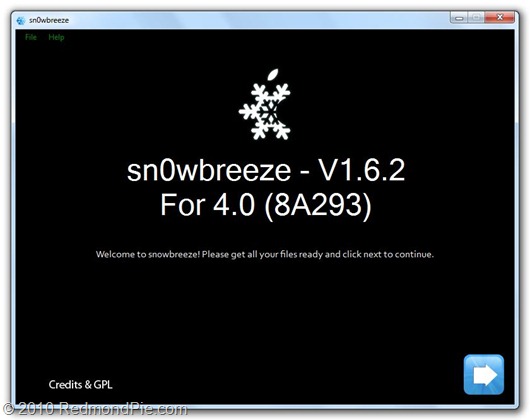
sn0wbreeze V1.6.2
* iBooty (http://www.mediafire.com/?qwzzjhziwz0)
* LibUSB (64-Bit users read carefully!!!)
* 3.1.2/4.0 3GS firmware downloaded. [Download iPhone 3.1.2 / DownloadiOS 4.0]
——-
STEP A : Grabbing your 3.1.2 iBSS file.
Pointing your hosts :
I : If you have your shsh blobs saved on Cydia/Saurik’s server then follow this tutorial. — http://saurik.com/id/12
II : If you have it saved with TinyUmbrella, then download the GUI here. — http://thefirmwareumbrella.blogspot.com/
——-
Restoring to grab the iBSS file.
I : Place your device in DFU.
II : Start up the iBSS/iBEC grabber.
III : Put the save folder on a new folder on your desktop.
IV : Hit "Start Monitoring".
V : Now go back to iTunes and do SHIFT + Restore. Then browse for your 3.1.2 IPSW. You will need to restore
to 3.1.2 in order to pwn 4.0.
——-
Saving your iBSS
I : After Restoring, Go to the folder that you have specified to save your iBSS file.
II : You will see folders like (Per**.tmp). Go into one of them, and you’ll see a folder called "Firmware". Go there. Then go to the folder "dfu".
III : Copy the iBSS file to a safe place, then you can remove the folder created by the iBSS Grabber.
——
STEP B : Creating custom 4.0 firmware.
I : Download sn0wbreeze from http://ih8sn0w.com and create your custom 4.0 ipsw. [How to Guide]
*Ignore the warnings after browsing for the ipsw.*
——
STEP C : Installing LibUSB for iRecovery
Run this mini tool to detect your O/S + Arch. — Windows + Arch. Detector  (http://www.mediafire.com/?imyzm2t3zam)
*********
WARNING : IF LIBUSB IS NOT INSTALLED PROPERLY, YOUR USB MIGHT NO LONGER WORK!
*********
Windows XP Users download this installer — LibUSB Installer (http://www.mediafire.com/?zyy0mjthhij)
*********
Windows Vista/7 users RUNNING 32-Bit:
* Download the installer (http://www.mediafire.com/?zyy0mjthhij) and run it in compatibility mode for Windows XP.
*********
If you are a 64-Bit user, follow this tutorial – (http://bit.ly/9N423f)
*********
Once LibUSB is installed iRecovery should be able to function now.
——-
STEP D : Pwning iBSS + iBoot
I : Download this easy tool here — Payload Pwner for 3GS // It will help you create the payloads.
**SAVE THE PAYLOADS WHERE iBooty is.**
——-
STEP E: iBooty Prep.
Most of you know of the utility "iBooty" that I made for Aki_nG.
It will work as long as you place all of the correct files there.
I : Download iBooty GUI here — iBooty for 3GS (http://www.mediafire.com/?qwzzjhziwz0) and Extract it.
II : Extract your Custom IPSW created by sn0wbreeze with 7-Zip or another un-archiver.
III : Grab the kernelcache and bring it into the same folder as ibooty.
Also grab the iBEC from the folder "Firmware\dfu\iBEC.n88ap.RELEASE.dfu"
IV :
* Rename your iBSS 3.1.2 signed to "ibss312.dfu"
* Rename your Kernel 4.0-Custom to "kernel.40"
* Rename your iBEC 4.0-Custom to "ibec40.dfu"
======
Your folder should look like this :
- iboot.payload <– Created with Payload Pwner.
- exploitibss312 <– Created with Payload Pwner.
- ibec40.dfu <– Grabbed from Custom IPSW made by sn0wbreeze.
- irecovery.exe <– Comes with iBooty.
- readline5.dll <– Comes with iBooty.
- iBooty.exe <– Comes with iBooty.
- ibss312.dfu <– THIS NEEDS TO BE YOUR iBSS from the restore!
- kernel.40 <– Grab from Custom IPSW made by sn0wbreeze.
- sn0w.img3 <– Comes with iBooty.
======
——-
STEP F: Restoring to 4.0 + Booting
——-
*MAKE SURE YOU ARE ON 3.1.2 WHEN DOING THIS*
I : Run iBooty and Select "Prepare Device for Custom Firmware". Run the Process and if you see a snow flake, you can proceed!
II : Now open iTunes and restore to the custom ipsw.
***WHEN DONE, YOUR DEVICE WILL HAVE A BLACK SCREEN AND NOT BOOT! ITS IN A DFU LOOP [THIS IS NORMAL!]***
——-
STEP G : Booting
I : Just Re-Run iBooty and select "Boot It". If all goes well it will boot!
——-
Enjoy!
——-
Once you have jailbroken your phone, you can unlock it using ultrasn0w 0.93 (on anybaseband), guide for which is posted here.
Again, this is currently for iPhone 3GS with new bootrom only. Apparently, a similar guide for iPod touch (MC models) and iPod touch 3G is also in works. Oh and a tool to automate all this procedure will be released (no ETA) some time later. Stay tuned for more!
You may also like to check out:
You can follow me on twitter to keep yourself updated on all the latest jailbreaking and unlocking releases.

Source: redmondpie

Sunday, July 4, 2010

How to Jailbreak iPhone 3GS on iOS 4, which is already Jailbroken Using Spirit with Spirit2Pwn


When iOS 4 jailbreak first came out, it was only compatible with iPhone 3GS (old bootrom), iPhone 3G and iPod touch 2G (non-MC models). Things were even more trickier for iPhone 3GS. These 3GS devices were not only required to have old bootrom, but they were also required to have previously been pwned or jailbroken on anything (likeblackra1n) other than Spirit.
If your iPhone 3GS was not previously jailbroken with anything other than SpiritiTunesused to throw an error whenever you tried to restore your phone with custom firmware.Sn0wbreeze 1.6.2 later brought support for these Spirit’ed devices. But in case if you are still getting problems restoring to custom cooked iOS 4 firmware (from PwnageTool or Sn0wbreeze), you can use Spirit2Pwn patch to perfectly restore your iPhone 3GS on iOS 4custom firmware.
NOTE: This applies to iPhone 3GS with old bootrom, previously jailbroken on iPhone 3.1.3 using Spirit.
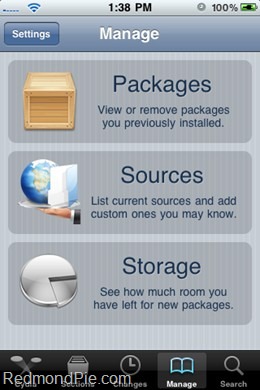
Step 1: Start Cydia on your iPhone 3GS (old bootrom, jailbroken on 3.1.3 using Spirit) and touch on “Manage” tab on the bottom. Now touch on “Sources” as seen in the screenshot below.

Unlock iPhone 3.1.3
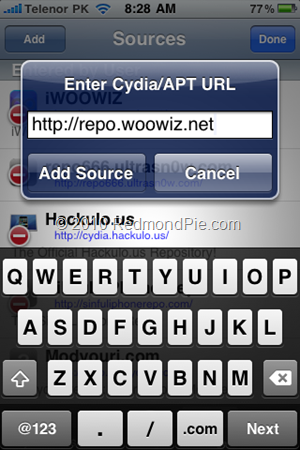
Step 2: Touch on “Edit” and then on “Add”. You will be prompted to enter a url source as seen in the screenshot below. Type “http://repo.woowiz.net and touch on “Add Source”.
Spirit2Pwn (1)
Cydia will now automatically update your sources by following a series of automated steps.
Step 3: Once the repository has been added successfully, Search for “Spirit2Pwn” in Cydia and install this application.
Spirit2Pwn (2)
Step 4: Now from here onwards, simply follow our previous guides on how to jailbreakiOS 4 on iPhone 3GS using PwnageTool 4.0 / 4.0.1 for Mac posted here, and Sn0wbreeze 1.6 for 4.0 on Windows guide posted here.
Once you have jailbroken your phone, you can unlock it using ultrasn0w 0.93 (on anybaseband), guide for which is posted here.
You may also like to check out:
You can follow me on twitter to keep yourself updated on all the latest jailbreaking and unlocking releases.

Source: redmondpie

Thursday, July 1, 2010

Fix iOS 4 YouTube, iBooks and iTunes Restore Error Problem with Sn0wbreeze 1.6.2 [Jailbreak]


Sn0wbreeze 1.6.2 has just been released. This new update brings fixes for YouTube, iBooks and iTunes Error 2 which has been problematic for most users after iOS 4 jailbreak. Apart from this, this new version also brings support old bootrom Spirit jailbreak toolusers who can now jailbreak their device on iOS 4 with Sn0wbreeze.
For those of you who don’t know, Sn0wbreeze for Windows is like PwnageTool for Macwhich can be used to create custom pwned ipsw firmware files which can then be restored on iOS devices without upgrading their baseband.

Sn0wbreeze 1.6.2
sn0wbreeze V1.6.2 is live –> http://ih8sn0w.com <– Old-Bootrom Spirit’d users will be happy! =)
Instructions to jailbreak iPhone 3GS (old bootrom), iPhone 3G and iPod touch 2G (non-MC model) on iOS 4 using Sn0wbreeze 1.6.2 as usual are exactly similar to the last release. Please read all the instructions posted here carefully before upgrading and jailbreakingyour phone on iOS 4.
Once you have jailbroken your phone, you can unlock it using ultrasn0w 0.93 (on anybaseband), guide for which is posted here.
Download Sn0wbreeze V1.6.2 for 4.0 [Windows]
You may also like to check out:
You can follow me on twitter to keep yourself updated on all the latest jailbreaking and unlocking releases.

Source: redmondpie

Wednesday, June 30, 2010

Fix iPhone iOS 4 MMS / APN Issue After Jailbreak with Redsn0w 0.9.5b5-5


The iPhone Dev Team has just updated Redsn0w to version 0.9.5b5-5. Some iPhone users were complaining about MMS and APN issues on their jailbroken iOS 4 devices. Well the good news is that you can now fix this issue with this latest version of Redsn0w. The official change log is as follows.

Redsn0w 0.9.5b5-5
The latest redsn0w beta should fix any APN or MMS issues that users were seeing. It’s safe to re-run it on an already jailbroken iPhone without restoring…just deselect “Install Cydia” if you do that.
Instructions to jailbreak iPhone 3G and iPod touch 2G on iOS 4 using Redsn0w 0.9.5 as usual are exactly similar to the last release. If your phone is already jailbroken, just deselect “Install Cydia” option and re-run the jailbreak. Please read all the instructionsposted here carefully before upgrading and jailbreaking your phone on iOS 4.
Once you have jailbroken your phone, you can unlock it using ultrasn0w 0.93 (on anybaseband), guide for which is posted here.

Download iOS 4
Download Redsn0w 0.9.5b5-5 for Mac
Download Redsn0w 0.9.5b5-5 for Windows
Download iTunes 9.2 for Windows and Mac

You may also like to check out:
You can follow me on twitter to keep yourself updated on all the latest jailbreaking and unlocking releases.

Source: redmondpie

Sunday, June 27, 2010

How to Save iPhone 4 SHSH Blobs (ECID SHSH) on iOS 4


TinyUmbrella has been updated to support iPhone 4 (running iOS 4). It is important to save SHSH Blobs (ECID SHSH) files of your iPhone 4 now because of all the rumors going around regarding a new firmware update, which could be released as early as next week. If you have your SHSH blobs on file, you can downgrade anytime to iOS 4 from iOS 4.01should you need to.

iPhone 4
Some important notes for iPhone 4 SHSH blobs before you proceed.
If you desire to restore your iPhone 4 to iOS 4, make sure you uninstall Wi-Fi Sync before trying to do so.
In order to obtain your SHSH you MUST have the device attached.
Restores on the iPhone 4 are not perfect. They error out locally but the restore does complete – it just needs to be helped along. (Much like downgrades where the baseband update fails). I’ll try to put the functionality in TinyUmbrella to fix this.
For Mac users: Copy the app OUT OF THE DMG. The reason you are getting the repeating password prompts is because you ran the app from within the DMG. This is bad. Copy it anywhere and you’ll be fine.
TinyUmbrella
From here onwards, you can simply follow the steps that i have posted here for iPhone 3GS and iPod touch. These steps are essentially the same for iPhone 4 except for some of the notes that I have posted above. Oh and if you want to learn more about what SHSH blobs or ECID SHSH files are, you can do so by reading one of my old article posted here.
Download TinyUmbrella (Windows)
Download TinyUmbrella (Mac OS X)
You may also like to check out:
You can follow me on twitter to keep yourself updated on all the latest jailbreaking and unlocking releases.

Source: redmondpie

ToolJail 2.2 for iOS 4 iPhone and iPod touch Jailbreak Assistance


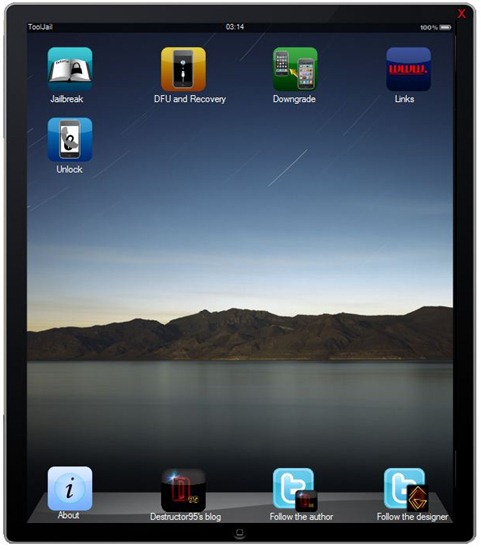
ToolJail has been just updated to version 2.2. This new version brings updates tojailbreak and unlock guides, and links for jailbreak tools for the newly released iOS 4. For those of you who don’t know, ToolJail (like f0recast) is designed to help iPhone newbie’s to jailbreak and unlock their iPhone and iPod touch. It contains all the necessary jailbreakand unlock instructions, along with how-to’s on DFU and Recovery Mode, downgradingfirmware, and direct download links for all the necessary tools required.

ToolJail 2.2
Some of the changes which version 2.2 of ToolJail brings are as follows.
  • New UI enhancements
  • Updated Jailbreak and Unlock guides for iOS 4
  • Updated download links for existing and new jailbreak and unlocking tools
Download ToolJail 2.2 for Windows
Download .NET Framework 3.5 (required to run ToolJail)
You may also like to check out:
You can follow me on twitter to keep yourself updated on all the latest jailbreaking and unlocking releases.

Source: redmondpie