5% Off Powermat

Join The Community

Showing posts with label Fix. Show all posts
Wednesday, December 1, 2010

Fix Battery Drain Issue After Unlocking iPhone 3GS / 3G With Ultrasn0w 1.2 on Baseband 6.15.00


The recently released PwnageTool / Redsn0w jailbreak tools for iOS 4.2.1 requires you to transfer iPad’s 3.2.2 baseband to your iPhone 3GS & 3G in order to unlock it using Ultrasn0w 1.2. This has resulted in poor battery performance as has been experienced by many users. Some users have also complained about their device becoming very hot when in use.

Tuesday, November 30, 2010

How To Fix iPhone iPod Music Library Missing in iOS 4.2

IOS 4.2 has just been released and some iPhones’ users may have already rushed to update it regardless if it is fully validated now. However, not all of the firmware releases are bug free and even some minor bugs may cause certain degree of inconvenience to end users. Just recently, some iDevices’ users have experienced an issue of missing iPod music library after upgraded to iOS 4.2. Not to worry now, there is actually a fix that been figured out by forum users.

Wednesday, November 24, 2010

Fix iTunes Error 1013 When Updating iPhone 4 to iOS 4.2.1


If you have tried updating to the recently released iOS 4.2.1 update on iPhone 4 and encountered Error Code 1013 or Error Code 1611, then you are a not alone. This has been a common issue across all iOS devices updating to iOS 4.2.1 and Apple Support Discussion forums are full of users complaining about this issue.

Tuesday, November 16, 2010

How to Fix 1604, 1601, 1600, 16xx Error During iOS 4.1 Custom IPSW Firmware Restore in iTunes with iREB 4.1

New version of iREB for all iOS 4.1 devices is now available for download. You can use it to bypass 1604, 1603, 1602, 1601, 1600 error in iTunes during custom iOS 4.1 firmware restore which has been created using either Sn0wbreeze or PwnageTool.

Thursday, September 23, 2010

Download Sn0wbreeze 2.0.1 to Fix iTunes Error 37 on iOS 4.1 Jailbreak

Sn0wbreeze has just been updated to version 2.0.1 to fix iTunes Error 37 which has been problematic for some iPhone 3G users when restoring to the custom firmware file. According to Deon Yeang on Redmond Pie’s facebook page, the error occurs when you are in midway of restoring to the custom cooked firmware using iTunes.

Jailbreak iPod touch 3G / iPod touch 2G (MC Model) on iOS 4.1 with Sn0wbreeze 2.0.1 [Guide]

Sn0wbreeze 2.0 was released earlier today. It brings support for a bunch of devices running on iOS 4.1. These include:

Monday, August 2, 2010

Fix FaceTime and MMS Problem on iPhone 4 After Jailbreaking with JailbreakMe 2.0


I just found out about this fix from Redmond Pie’s Facebook fanpage and thought I should share it with you all. If you cant wait for JailbreakMe update, here is a quick possible fix for FaceTime and MMS issue on iPhone 4 after jailbreak using JailbreakMe 2.0 (Star). Simply follow the step by step guide below to fix the issue.


Step 1: Follow the step by step guide posted here to jailbreak your iPhone 4, 3GS on iOS 4.0.1 / 4.0 using JailbreakMe.


Step 2: Once you are done with the jailbreak, start “Cydia” on your iPhone.


Step 3: Touch on “Manage” tab on the bottom.


Step 4: Now touch on “Sources” as seen in the screenshot below:

Cydia iPhone 4 (1)
Step 5: Touch on “Edit”, and then on “Add”. You should now be prompted to enter a url source as seen in the screenshot below. Type“http://iphonedelivery.advinux.com/cydia/” and click on“Add Source”.
Cydia iPhone 4 (2)
Cydia will now automatically update your sources by following a series of automated steps.
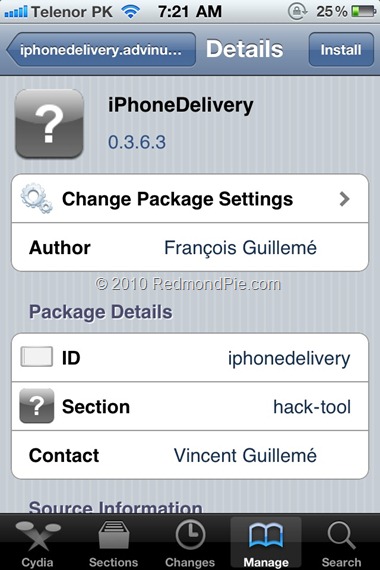
Step 6: After installation is completed. Search for “iPhoneDelivery” in Cydia and install this application. This app apparently fixes both the FaceTime and MMS issue.
Cydia iPhone 4 (3)
Let us know how this one goes for you in the comments section below. [Thanks Ran Cohen for the share on Redmond Pie’s Facebook Fanpage]


UPDATE 1: JailbreakMe has been updated which has fixed all the problems related to FaceTime and MMS. If you are doing a fresh jailbreak, you will not have any of these issues. Existing users will need to do a “Complete Upgrade” of Cydia followed by a reset of Network Settings. To do this, simply fire up Cydia and let the loading to finish. It will now automatically ask you to update Cydia. Touch on “Complete Upgrade” and reboot the device once it is done. Go to Settings –> General –> Reset –> Reset Network Settings. Reboot the device again. The problem should be fixed now.

You can follow me on twitter to keep yourself updated on all the latest iPhone jailbreaking and unlocking releases.


Source: redmondpie

Thursday, July 1, 2010

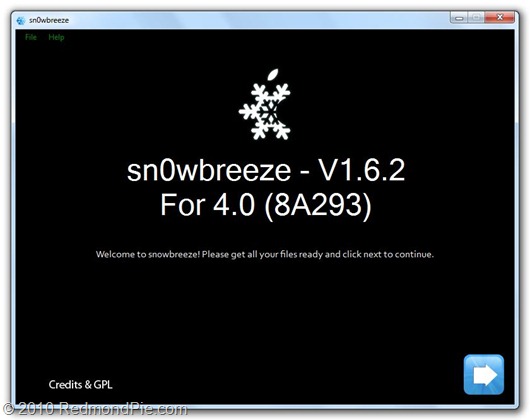
Fix iOS 4 YouTube, iBooks and iTunes Restore Error Problem with Sn0wbreeze 1.6.2 [Jailbreak]


Sn0wbreeze 1.6.2 has just been released. This new update brings fixes for YouTube, iBooks and iTunes Error 2 which has been problematic for most users after iOS 4 jailbreak. Apart from this, this new version also brings support old bootrom Spirit jailbreak toolusers who can now jailbreak their device on iOS 4 with Sn0wbreeze.
For those of you who don’t know, Sn0wbreeze for Windows is like PwnageTool for Macwhich can be used to create custom pwned ipsw firmware files which can then be restored on iOS devices without upgrading their baseband.

Sn0wbreeze 1.6.2
sn0wbreeze V1.6.2 is live –> http://ih8sn0w.com <– Old-Bootrom Spirit’d users will be happy! =)
Instructions to jailbreak iPhone 3GS (old bootrom), iPhone 3G and iPod touch 2G (non-MC model) on iOS 4 using Sn0wbreeze 1.6.2 as usual are exactly similar to the last release. Please read all the instructions posted here carefully before upgrading and jailbreakingyour phone on iOS 4.
Once you have jailbroken your phone, you can unlock it using ultrasn0w 0.93 (on anybaseband), guide for which is posted here.
Download Sn0wbreeze V1.6.2 for 4.0 [Windows]
You may also like to check out:
You can follow me on twitter to keep yourself updated on all the latest jailbreaking and unlocking releases.

Source: redmondpie

Wednesday, June 30, 2010

Fix iPhone iOS 4 MMS / APN Issue After Jailbreak with Redsn0w 0.9.5b5-5


The iPhone Dev Team has just updated Redsn0w to version 0.9.5b5-5. Some iPhone users were complaining about MMS and APN issues on their jailbroken iOS 4 devices. Well the good news is that you can now fix this issue with this latest version of Redsn0w. The official change log is as follows.

Redsn0w 0.9.5b5-5
The latest redsn0w beta should fix any APN or MMS issues that users were seeing. It’s safe to re-run it on an already jailbroken iPhone without restoring…just deselect “Install Cydia” if you do that.
Instructions to jailbreak iPhone 3G and iPod touch 2G on iOS 4 using Redsn0w 0.9.5 as usual are exactly similar to the last release. If your phone is already jailbroken, just deselect “Install Cydia” option and re-run the jailbreak. Please read all the instructionsposted here carefully before upgrading and jailbreaking your phone on iOS 4.
Once you have jailbroken your phone, you can unlock it using ultrasn0w 0.93 (on anybaseband), guide for which is posted here.

Download iOS 4
Download Redsn0w 0.9.5b5-5 for Mac
Download Redsn0w 0.9.5b5-5 for Windows
Download iTunes 9.2 for Windows and Mac

You may also like to check out:
You can follow me on twitter to keep yourself updated on all the latest jailbreaking and unlocking releases.

Source: redmondpie

Sunday, June 27, 2010

Spirit Jailbreak Fix for iTunes 9.2 on iOS 3.1.3 for iPhone and iOS 3.2 for iPad


The best and the most easiest jailbreak tool has just been updated (unofficially?) to bring support for iTunes 9.2. Earlier when Apple released the final version of iTunes 9.2, it broke the compatibility with Spirit and so this new version brings the required fix to make it compatible with iTunes 9.2. However no new feature has been added. It still does not work with iOS 4 and iPhone 4. Only iOS 3.1.3 and 3.1.2 for iPhone 3GS, 3G, 2G, iPod touch, and iOS 3.2 for iPad is supported.

Spirit with iTunes 9.2
Instructions are still the same. You can follow our complete step by step guides to jailbreak your iPad, iPhone 3GS, 3G, 2G and iPod touch 3G/2G on 3.1.3 using Spirit.
For those of you with iPhone 3GS (new bootrom), iPod touch 2G (MC model) and iPod touch 3G who upgraded to iOS 4, only to find out that you cant jailbreak it back can actually downgrade back to iOS 3.1.3 and then jailbreak it using Spirit. Step by step guide for downgrading your iOS device from iOS 4 to iOS 3.1.3 can be found here (works only if you have SHSH blobs saved for 3.1.3).
Unlocking can be done on any baseband using Ultrasn0w 0.93, instructions for which isposted here.
Download Spirit for Windows (with iTunes 9.2 support)
Download iTunes 9.2 for Window and Mac
You may also like to check out:
You can follow me on twitter to keep yourself updated on all the latest jailbreaking and unlocking releases.

source: redmondpie

Thursday, June 24, 2010

Fix 1604, 1600 Error During iOS 4 Custom Firmware Restore in Tunes


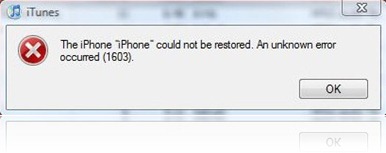
Some of you might have noticed the annoying 16041600 error when restoring to iOS 4custom firmware in iTunes which is built using PwnageTool 4.0 or 4.01. The error in question looks something on the lines of this.

The iPhone "[your iPhone]" could not be restored. An unknown error occurred.
16xx and 21 Error in iTunes during iPhone 3.1 Restore
Going through the comments posted here, I found this fix posted by one of our reader which I thought I should share it with you all. I haven’t tried this because I never got the error, but if you did get the error, let us know if the instructions posted below fixes the issue.
The instructions, as posted by Carlos Leopoldo are as follows:
Steps to fixing 1604 iPhone restore error:
1. There is no need to reinstall iTunes or whatever. Keep the same version that you have used to restore or backup previously.
2. Make sure that iPhone is disconnected from your computer and that iTunes is closed.
3. The following step of fixing 1604 iPhone restore error is Windows XP specific, if you are a Mac user, you may have to locate the folders yourselves as I am not sure: Go to folder C:\Documents and Settings\\Application Data\Apple Computer\iTunes\iPhone Software Updates. You will see one or more files. Cut and paste them somewhere else. Do not delete them in case the steps does not work for you, you can still copy them back to the folder. You can find out your username by doing a Ctrl-Alt-Del. If somehow you cannot find the folder, you are probably in the wrong user directory.
4. Launch iTunes and put your iPhone in recovery mode. Refer to this article on Unable To Restore iPhone on how to do put iPhone in recovery mode.
5. Proceed with restore and iTunes will download the update online. If you are downgrading to a lower version, do step 3 and leaving only the firmware file that you want to downgrade to. Double click on the file and iTunes will begin the restore.
Please do share your results with us in the comments section below. Thanks.
You may also like to check out:
You can follow me on twitter to keep yourself updated on all the latest jailbreaking and unlocking releases.

Source: redmondpie

Wednesday, June 23, 2010

Fix iBooks After iOS 4 Jailbreak with Redsn0w 0.9.5b5-4


Some users were complaining about newly released iBooks for iPhone having issues onjailbroken iOS 4 devices. The good news is that Redsn0w has been updated to version 0.9.5b5-4 in order to fix this problem. The official change log is as follows.

Redsn0w 0.9.5b5-4


There’s a new redsn0w beta (links were changed above) that should fix any iBooks problems people were seeing.  Just run this new version 0.9.5b5-4 and deselect Cydia (you don’t want to reinstall Cydia over itself).
Instructions to jailbreak iPhone 3G and iPod touch 2G on iOS 4 using Redsn0w 0.9.5 as usual are exactly similar to the last release. Please read all the instructions posted herecarefully before upgrading and jailbreaking your phone on iOS 4.
Once you have jailbroken your phone, you can unlock it using ultrasn0w 0.93 (on anybaseband), guide for which is posted here.

Download iOS 4
Download Redsn0w 0.9.5b5-4 for Mac
Download Redsn0w 0.9.5b5-4 for Windows
Download iTunes 9.2 for Windows and Mac
You may also like to check out:

You can follow me on twitter to keep yourself updated on all the latest jailbreaking and unlocking releases.

Source: redmondpie

Wednesday, May 12, 2010

iFixer Fix for Spirit and Blackra1n Jailbreak Users


iFixer is a new utility that will fix iTunes 9.1.x related errors when running Spirit Jailbreak for iPhoneiPad and iPod touch, or blackra1n on Windows. The program basically has two buttons: “Make it Spirit!” and “Make it ra1n!”. Clicking on each of them will solve the respective iTunes 9.1.1 related issue.

iFixer for Windows
You must place iFixer.exe in the same folder as Spirit.exe or Blackra1n.exe for them to work properly.

iFixer for Windows can be downloaded from here.

You can follow me on twitter oto keep yourself updated on all the latest jailbreaking and unlocking releases.

Source: redmondpie

Monday, May 10, 2010

Spirit Jailbreak Tool Updated. Fixes Photo Deletion Bug and Errors on Windows


he all-in-one untethered jailbreak tool, which was released yesterday has been updated. An issue which was reported earlier where it deleted all the saved photos on the device once the jailbreak was complete has been fixed. This update to Spirit resolveserror code c0000005 which some Windows users were facing.

Spirit for iPad
The official change log is as follows.
Update (May 3): I’ve updated the jailbreak tool. It no longer deletes photos (sorry!) and should resolve the issue with error code c0000005. (If you still get that error with the new version, try setting compatibility mode to Windows 95.)
Check out our following step by step guides to jailbreak iPhone, iPad and iPod touch – untethered !
Download Spirit for Windows and Mac
You may also like to check out:
You can follow me on twitter to keep yourself updated on all the latest jailbreaking and unlocking releases.

Source: redmondpie

Wednesday, March 31, 2010

Blackra1n Fix for iTunes 9.1 with BlackBreeze

iTunes 9.1, which was released a few hours ago caused syncing issues for many users (specially on Windows), who were jailbroken on iPhone 3.1.2 (tethered) using blackra1n. But now thanks to ih8sn0w, this issue can now be fixed by using BlackBreeze.


BlackBreeze - Blackra1n fix for iTunes 9.1
To fix blackra1n RC3, simply start BlackBreeze and select blackra1n RC3. Now select the directory where you want to save the fixed blackra1n RC3 executable file. You’ll now notice that a new file by the name of blackra1n-fixed.exe would have been created in the directory where you chose to save it.
Now start this fixed version of blackra1n RC3 and use this to start your device (tethered). Once done, you’ll now be able to sync your iPhone (firmware 3.1.2) safely with iTunes 9.1.
Also check out our complete jailbreaking guides for iPhone 3.1.3 firmware for iPhone 2G, 3G, 3GS and iPod touch 1G/2G using redsn0w 0.9.3redsn0w 0.9.4sn0wbreeze,PwnageTool 3.1.5. Unlocking can be done using ultrasn0w or blacksn0w.
For iPhone 3.1.2 firmware, you can use blackra1nPwnageToolredsn0wsn0wbreeze,ultrasn0w and blacksn0w to jailbreak and unlock your iPhone and iPod touch.
Download iTunes 9.1 for Windows 
Download BlackBreeze for Windows [Fast Mirror Link
Download Blackra1n RC3


You may also like to check out:
You can follow me on twitter to keep yourself updated on all the latest jailbreaking and unlocking releases.

Source: redmondpie

Thursday, February 11, 2010

Fix 1604 Error During iPhone 3.1.3 IPSW Custom Restore


I have got loads of emails and queries via comments on the posts here and here where many of you have been asking on how to fix 1604, 1603, 1602, 1601, 1600 error in iTunes during firmware restore. This error is occurred when you are trying to restore yourjailbroken custom iPhone 3.1.3 .ipsw file which you cooked using either PwnageTool orsn0wbreeze. The error which iTunes throws may look like this.

The iPhone "[your iPhone]"  could not be restored. An unknown error occurred.
Fix 1604 Error iPhone 3.1.3
To get around this problem, there is a handy little tool called iREB (iTunes Restore Error Bypasser) for Windows which can help you bypass the error when you are restoring .ipsw file in iTunes. The latest version of this program works with iPhone 3.1.3 firmware running on the original iPhone, iPhone 3G and iPod touch 1G/2G.
Follow the steps below to bypass this error so that you can restore iPhone 3.1.3 firmware in iTunes.
Step 1: Start iTunes and put your phone into DFU mode:
Press and hold the Home button and the Power button at the same time. After exactly 10 seconds release the Power button. Continue holding the home button until you iTunes pops up a message telling you that it has detected an iPhone in recovery mode. At this point your iPhone/iPod touch screen will remain black.
Fix 1604 Error iPhone 3.1.3
Step 2: Now close iTunes and Start iREB on Windows.
iREB
Step 3: Simply select your device and wait for a few seconds until you get white or a red screen on your iPhone or iPod touch.
Step 4: Now open iTunes and select your phone from the sidebar in iTunes. Now press and hold left “alt” button (“Shift” button on Windows) on the keyboard and then click on “Restore” (Not “Update”) button in the iTunes and then release the “Shift” button. Select a custom .ipsw file and restore it.
That’s it! iTunes should now be able to restore your iPhone or iPod touch to the latest iPhone 3.1.3 firmware without any problems. Hopefully you wont get any errors this time around!
One thing to note here is that iREB is not for jailbreaking. It is only used for restoring to custom .ipsw firmware files via iTunes without any errors.
You can follow our complete jailbreaking guide for iPhone 3.1.3 firmware for iPhone 2G, 3G, 3GS and iPod touch 1G/2G using redsn0w 0.9.3redsn0w 0.9.4sn0wbreeze,PwnageTool 3.1.5. Unlocking can be done using ultrasn0w or blacksn0w.
For iPhone 3.1.2 firmware, you can use blackra1nPwnageToolredsn0wsn0wbreeze,ultrasn0w and blacksn0w to jailbreak and unlock your iPhone and iPod touch.

Download iTunes 9.0.3 for Windows and Mac 
Download iREB for Windows [Fast Mirror Link]


You can follow me on twitter to keep yourself updated on all the latest iPhone jailbreaking and unlocking releases.

Source: redmondpie

Tuesday, December 8, 2009

Fix ultrasn0w repo error in Cydia


Now days iPhone users are suffering to unlock their jailbroken iPhone on OS version 3.0 & 3.0.1 because  http://repo666.ultrasn0w.com is not working and getting bad source error while adding this source in Cydia.

You can search this error with Google to fix this issue and to unlock the jailbroken iPhone.


Follow the steps to fix this issue:


1. Add http://sinfuliphonerepo.com source in Cydia
2. Find Ultrasn0w
3. Install it
4. Reboot iPhone

That's it, now your iPhone should be unlocked. If not, follow the steps 5 & 6.

5. Make sure Ultrasn0w is in Cydia, manage, packages
6. Reboot iPhone again and your iPhone should be unlocked

Alternatively you can do as shown below:


Untrasn0w Manual Install Instruction:

1. Download Ultrasn0w version 0.92 DEB from here
2. SSH into iPhone
3. Place deb file in var/root/Media/Cydia/AutoInstall (If Cydia/AutoInstall dont exist, create them)
4. Reboot iPhone AND respring

5. Make sure Ultrasn0w is in Cydia, manage, packages
6. Reboot iPhone again and phone should be unlocked


Tuesday, November 24, 2009

SSHServices : Fix Problem with the SSH Connection Cydia


SSHServices is a new Tweak available in Cydia, SSHServices aims to solve a problem that occurs only on some Jailbroken iPhone. If you are facing SSH timeout errors constantly this fix is for you. It must be installed only on devices that return a specific error when you try to establish a connection via SSH. The error in question is a sentence like: “Your Device is not Jailbroken, and SSH client shows only the files in the folder” mobile “without access to the” root “root.
SSHServices
Needn’t to mention again but: Install this tweak only if you are facing such kind of problems.
We’ll continue to update you all with more details with new hacks on Cydia as they release. Till then stick with us on Twitter @iTune2iPhone to keep yourself updated on every news about iPhone.
Source: ihackintosh

Sunday, November 8, 2009

Fix No Wi-Fi, GPS and YouTube after Blackra1n Jailbreak

GeoHot released Blackra1n RC3 and Blacksn0w RC1 for jailbreaking and unlocking iPhone 3G/3GS with baseband 5.11.07, If you haven’t jailbroken yet then follow our guides for iPhone 3G 3GS Firmware 3.1.2 and for iPhone 2G Firmware 3.1.2 The process of jailbreak unlock is very easy but many user reported back us that they have broken Wi-Fi after jailbreaking their iPhones with blackra1n. Some folks also  reported  problems with GPS or YouTube after unlocking the iPhone with BlackSn0w.


Broken Wi-Fi Fix : There is an easy fix for all of this. All you have to do is to go to Settings>General>Reset> and hit Reset Network Settings. After resetting the network settings. Then reboot your phone and you should be fine.
Push Notifications Fix : Launch the cydia and add  the following repo “ http://cydia.iphoneil.net/ ” then search for  “ pushfix “ and install this patch. By doing this your push notification bug caused by blackra1n will be patched.
Thanks to Jane for dropping the tip


wifi
Some of our follower asked us they don’t have the working WiFI connection, so how can they unlock their iPhones with Blacksn0w without having WiFi connection. For them here is a workaround to Unlock iPhone 3.1.2 Blacksn0w Offline Without WiFi Cydia.

If you have any question we’ll love to hear back from you on twitter via @iTune2iPhone and keep your self updated with the latest of iPhone community.
Source: ihackintosh

Tuesday, October 27, 2009

Fix iPhone 3.1.2 Tethering and Visual Voicemail VVM

Last week we posted a complete step by step guide on how to enable Internet Tethering option on your iPhone 3G/3GS running iPhone firmware 3.1.2 which was based on the hack, originally found by the Dev-Team. While the hack worked flawlessly for some, many specially AT&T users were forced to choose between enabling either Tethering option or visual voicemail (VVM).


W1kedZ has finally found a fix for AT&T users who relied on MobileConfig file fromhttp://help.benm.at to enable Internet Tethering on their iPhone’s. Follow the steps below to enable both Tethering and Visual voicemail (VVM) on your iPhone 3G/3GS running iPhone 3.1.2 firmware (for AT&T users only):
Step 1: You will need to first follow the complete detailed guide posted here to enable Internet Tethering on your iPhone from Step 1 – Step 10.
Step 2: Make sure you do not install the MobileConfig file fromhttp://www.benm.at/help/help.php as mentioned in UPDATE 1 of our guide posted here. If you already have it installed, then you must first remove it by navigating to Settings -> General –> Profiles on your iPhone before moving to the next step.
Step 3: Download and install the corrected MobileConfig file by browsing to this link from mobile Safari on your iPhone. This corrected MobileConfig file basically has correct APN settings for both VVM and Tethering so that they don’t interfere with each other.

That’s it! Tethering and Visual voicemail should now both be running perfectly on yourjailbroken AT&T iPhone 3G/3GS running firmware 3.1.2.
You can ask me any question should you run into any problem in enabling Tethering and Visual voicemail (VVM) on your iPhone running firmware 3.1.2.
You can follow me on twitter to keep yourself updated on all the latest iPhone jailbreaking and unlocking releases.

Source: redmondpie