5% Off Powermat

Join The Community

Showing posts with label Windows. Show all posts
Saturday, November 13, 2010

Sn0wbreeze 2.1 iOS 4.1 Jailbreak for All iOS Devices Released [Custom Firmware Windows]

Sn0wbreeze 2.1 for iOS 4.1 / 3.2.2 is now available for download. If any of the existing iOS 4.1 jailbreak tools didn’t work for you, you can give Sn0wbreeze 2.1 a try! For those of you who don’t know, like PwnageTool for Mac, Sn0wbreeze for Windows can be used to create custom firmware files for iOS 4.1 without the upgraded baseband so that you can unlock iOS 4.1 (05.13.04 baseband) with existing version of Ultrasn0w.

Friday, October 8, 2010

Download Redsn0w 0.9.6 for Windows to Jailbreak iOS 4.1 on iPhone 3G and iPod touch 2G

We’ve released a beta version of redsn0w for the iPhone3G and iPod Touch 2G at FW 4.1 or 4.0.  It uses the same pwnage2 DFU-mode exploit that we’ve been using since the 2.x days.  It does not include the SHAtter exploit developed by pod2g.  Nothing new is revealed to Apple with this jailbreak.

Thursday, June 24, 2010

Jailbreak iOS 4 iPhone 3GS 3G with Sn0wbreeze [Custom Firmware Windows]


Sn0wbreeze 1.6 has been released. This is by the same developer who is behind other popular iPhone jailbreak tools such as sn0wbreeze for iPhone 3.1.3f0recast andBlackBreeze. Just like the PwnageTool for Mac, Sn0wbreeze 1.6 can jailbreak iPhone 3GS (old bootrom, and already pwned on 3.1.2 with anything other than Spirit), iPhone 3G and iPod touch 2G (non MC model).

Sn0wbreeze 1.6 for 4.0
So if you have a Windows machine, you can use Sn0wbreeze 1.6 to create custom firmware files without the upgraded baseband. Again, just like the PwnageTool 4.0 / 4.01, only the following devices are supported.
  • iPhone 3G/3GS (old bootrom/already jailbroken with anything other than Spirit)
  • iPod Touch 2G (non MC model)
Instructions are as follows.
Step 1: Download and install the latest version of iTunes.
Step 2: Now start iTunes and sync your iPhone with your PC so that it backs-up all your important data including settings, apps, music, contacts and photos.
Step 3: Download Sn0wbreeze and the original iOS 4 firmware file for your version of iPhone or iPod touch (download links given below). Move all these files to your desktop.
Step 4: Start Sn0wbreeze and select “Simple Mode”.
sn0wbreeze 3.1.3
Step 5: Sn0wbreeze will now ask you to browse for your .ipsw file. Select the correct iOS 4 firmware .ipsw file by clicking the “Browse” button. Sn0wbreeze will verify the selected file and then will present you with following screen.
Sn0wbreeze 1.6 for 4.0 (1)
Step 6: Click on "Yes" when Sn0wbreeze asks you “Do you want to activate your iPhone?” for hacktivation. Click on “No” only if you are on an officially supported carrier like AT&T.
sn0wbreeze 3.1.3
Step 7: Sn0wbreeze will now create the custom .ipsw file for your iPhone which will be jailbroken.
sn0wbreeze 3.1.3sn0wbreeze 3.1.3
Step 8: Now you will have to restore your iPhone to this custom firmware 4.0 that you just cooked using Sn0wbreeze for your iPhone. Click on your phone from the sidebar in iTunes and then press and hold left “Shift” button on the keyboard and then click on “Restore” (Not “Update” or “Check for Update”) button in the iTunes and then release the “Shift” button.
This will make iTunes prompt you to select the location for your custom firmware 4.0. Select that custom .ipsw file and click on “Open”.
Step 9: Now sit back and enjoy as iTunes does the rest for you. This will involve a series of automated steps. Be patient at this stage and don’t do anything silly. Just wait while iTunes installs the new iOS 4 on your iPhone. Your iPhone screen at this point will be showing a progress bar indicating installation progress. After the installation is done, iPhone will restart automatically and you should now have a fully jailbroken iPhone running on iOS 4.
How to: Unlock iPhone on iOS 4.0 (Any Baseband): Follow the complete step by step guide posted here to unlock iPhone 3GS and iPhone 3G, on iOS 4, on any baseband using Ultrasn0w 0.93.
Step 10: Once you are done with the unlocking and jailbreak process. You can now restore all your settings, apps, music, contacts and photos to the newly installed iOS 4 by restoring the backup that you made in Step 2 from iTunes.
Feel free to ask me any question here should you run into any problem during the jailbreak process.
Download iTunes 9.2 for Windows and Mac OS X
Download iOS 4 for iPhone 3GS, iPhone 3G and iPod touch
Download .NET Framework 3.5 (required to run Sn0wbreeze)
Download Sn0wbreeze 1.6 / 1.6.1 for 4.0 (Windows Only) [Fast Mirror link]
Disclaimer: This guide is for testing & educational purposes only. Follow it on your own risk. I’m not responsible for any loss of important data or malfunctioning of your iPhone.
UPDATE 1: Sn0wbreeze 1.6.1 is now available. Download Sn0wbreeze 1.6.1 for 4.0 from the updated link given above.
You may also like to check out:
You can follow me on twitter to keep yourself updated on all the latest jailbreaking and unlocking releases.

Source: redmondpie

Wednesday, June 23, 2010

Save SHSH Blobs (ECID SHSH) of iOS 4 on Windows and Mac


TinyUmbrella has been updated to support the new iOS 4 on iPhone 3GS and iPod touch 2G/3G. iPad is also supported but iOS 4 for iPad isn’t available yet. iPhone 3G is not supported because you don’t need to save SHSH blobs for iPhone 3G, and older iPod touch (non MC model).
This is important if you want to jailbreak (by downgrading) your device again should Apple patches the exploit used by the new unlock and jailbreak tools. It is also important to note that you wont be able to save SHSH blobs once Apple has released the new firmware (iOS 4.0.1 / iOS 4.1). This is because Apple will stop signing the iOS 4 firmware once the new one has been released, hence negating you to save your iOS Device SHSH files.
Use the step by step guide posted below to save your SHSH blobs (ECID SHSH) of iPhone 3GS, iPod touch 2G/3G on iOS 4 without having to jailbreak your device.
Step 1: Download the latest beta version of TinyUmbrella for WindowsMac or Linux.
Step 2: Make sure you are running iTunes > 9.0. iTunes 9.2 is recommended.
Step 3: Start the program and plug in any ONE of the supported iDevices (iPhone/iPad/iPod touch).

SHSH Blobs iOS 4
Step 4: Click on “Save My SHSH”. TinyUmbrella will now grab the signature for you.
SHSH Blobs iOS 4 (1)
It will be enabled again once a ticket has been generated to save it to saurik’s server.
SHSH Blobs iOS 4 (2)
This is it ! You should be safe now. Make sure you save the signature for your iPhone, iPad and iPod touch on file before Apple releases the next firmware.
You may also like to check out:
You can follow me on twitter to keep yourself updated on all the latest jailbreaking and unlocking releases.

Source: redmondpie

Saturday, June 19, 2010

iOS 4 Jailbreak tool Redsn0w 0.9.5 Updated for Windows and Mac

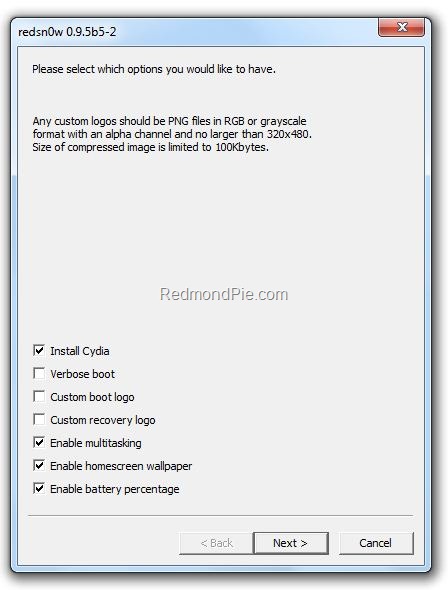
The iPhone Dev Team has just released a near final version of Redsn0w 0.9.5 for both Windows and Mac. This beta release, like all the previous ones is meant for iPhone 3G and iPod touch 2G only, running iOS 4 (formerly iPhone OS 4). Apart from multitasking and wallpapers support on iOS 4.0 on iPhone 3G and iPod touch 2G, this version also brings support to enable battery percentage which otherwise is disabled by Apple.

iOS 4.0 Jailbreak Redsn0w 0.9.5

The latest redsn0w beta lets you individually select whether multitasking and homescreen wallpaper are enabled. It also adds battery percentage and verbose boot mode options. (Verbose boot shows you the kernel messages during boot)
Note: Once you enable battery percentage, you actually toggle it off and on via Settings→General→Usage.
Warning Note: This release is strictly meant for official activated iPhones, if you rely on an unlock, stay away from this release.
Instructions to jailbreak iPhone 3G and iPod touch 2G on iOS 4.0 GM using Redsn0w 0.9.5 as usual are exactly similar to the last release. Please read all the instructions posted here carefully before upgrading and

jailbreaking your phone on iOS 4.
Download Redsn0w 0.9.5 for Windows
Download Redsn0w 0.9.5 for Mac
Download iPhone iOS 4.0 GM Release
Download iTunes 9.2 for Windows and Mac

iPhone 3GS users should follow the guide posted here to jailbreak iOS 4 using PwnageTool bundles.
If you are on iPhone OS 3.1.3, you can follow our step by step guides to jailbreak iPhone 3GS with Spirit here, iPod touch 3G untethered here, and iPad on OS 3.2 here.
Apple is all set to release the final version of iOS 4 on Monday, followed by first of iPhone 4 devices that will ship next week (June 24th). Final versions of these jailbreaking and unlocking tools for iOS 4 / iPhone 3.1.3 on 05.12.01 baseband can be expected right after the said devices have been released. Stay tuned as will update you, with complete how-to guides whenever they are available for download.
You may also like to check out:

You can follow me on twitter to keep yourself updated on all the latest iPhone jailbreaking and unlocking releases.

Source: redmondpie

Sunday, March 7, 2010

TeamViewer : Access Windows and Mac Remotely From iPhone


When it comes to access a computer remotely, TeamViewer is the first choice. The program can be used, to helping friends with problems, or just look up at home some time on the PC/Mac. This requires the installation of TeamViewer client software on the computer. Just install the application on the host computer and see the password you enter to enter the PC / Mac, now you can also use this wonderful application on your iPhone/iPod.

app-store
1. Install and start TeamViewer Pro from the AppStore
2. Install and start TeamViewer 5 on your PC or TeamViewer 4 on your Mac (www.teamviewer.com)
3. Enter your PC’s or Mac’s ID and password directly in the TeamViewer interface on your iPhone / iPod Touch to connect.
 The free TeamViewer license is intended solely for private use, who wants to use TeamViewer from the iPhone for business, investments must be 99.99$ in Pro version. The application is available for iPhone and iPod Touch, requires firmware version 2.2.1 or later

You can follow us on twitter to keep yourself updated on all the latest updates from around the world.


Source: ihackintosh

Tuesday, January 12, 2010

Guide to Jailbreak iPhone 2G 3G 3GS 3.1.2 on Windows with Sn0wbreeze

Sn0wbreeze like blackra1n, redsn0w and PwnageTool is yet another jailbreaking tool for iPhone and iPod touch which can be used to create custom .ipsw files. But unlike thePwnageTool, Sn0wbreeze is fully compatible to work with Windows 7/Vista and XP machines. If for some reason the earlier mentioned tools didn’t work for you, you can give Sn0wbreeze a try and see if it helps in jailbreaking your iPhone with a custom .ipsw file.


Note: Sn0wbreeze is a beta release and it may have some issues. blackra1n and PwnageTool are still the recommended tools for jailbreaking iPhone and iPod touch. Complete step by step guide for jailbreaking iPhone/iPod touch with blackra1n can befound here, and with PwnageTool here.
The current version of Sn0wbreeze supports iPhone 2G/3G/3GS(non MC) and iPod touch 1G and 2G (non MC). Follow the step by step guide posted below to jailbreak your iPhone and iPod touch with Sn0wbreeze.
Step 1: Download and install the latest version of iTunes.
Step 2: Now start iTunes and sync your iPhone with your PC so that it backs-up all your important data including settings, apps, music, contacts and photos.
Step 3: Download Sn0wbreeze and the original iPhone OS 3.1.2 for your version of iPhone (download links given below). Move all these files to your desktop.
Step 4: Start Sn0wbreeze and select “Simple Mode”. Dont select “Expert Mode” as it is still a work in progress and may not work properly.

Step 5: Sn0wbreeze will now ask you to browse for your .ipsw file. Select the correct 3.1.2 firmware .ipsw file for iDevice by clicking the “Browse” button. Sn0wbreeze will verify the selected file and then will present you with following screen.

Step 6: Click on "Yes" when Sn0wbreeze asks you “Do you want to activate your iPhone?” for hacktivation. Click on “No” only if you are on an officially supported carrier like AT&T.

Step 7: Sn0wbreeze will now create the custom .ipsw file for your iPhone which will be jailbroken.


Step 8: Now you will have to restore your iPhone to this custom firmware 3.1.2 that you just cooked using Sn0wbreeze for your iPhone. Click on your phone from the sidebar in iTunes and then press and hold left “Shift” button on the keyboard and then click on “Restore” (Not “Update” or “Check for Update”) button in the iTunes and then release the “Shift” button.


This will make iTunes prompt you to select the location for your downloaded custom firmware 3.1.2. Select that custom .ipsw file and click on “Open”.
Step 9: Now sit back and enjoy as iTunes does the rest for you. This will involve a series of automated steps. Be patient at this stage and don’t do anything silly. Just wait while iTunes installs the new firmware 3.1.2 on your iPhone. Your iPhone screen at this point will be showing a progress bar indicating installation progress. After the installation is done, iPhone will restart automatically and you should now have a fully jailbroken iPhone running on firmware 3.1.2.
How to: Unlock iPhone on 3.1.2:
You can now follow the tutorial/guide posted here to unlock your iPhone on firmware 3.1.2 using ultrasn0w, or here to unlock iPhone (05.11.07 baseband) with blacksn0w .
Step 10: Once you are done with the unlocking and jailbreak process. You can now restore all your settings, apps, music, contacts and photos to the newly installed firmware version 3.1.2 by restoring the backup that you made in Step 2 from iTunes.
Disclaimer: This guide is for testing & educational purposes only. Follow it on your own risk. I’m not responsible for any loss of important data or malfunctioning of your iPhone.
Feel free to ask me any question here should you run into any problem during the jailbreak process.
If you just got an iPhone or an iPod touch, make sure you check out our tons of tips & tricks, jailbreaking & unlocking guides and iPhone apps/games reviews by following this link.
Download iTunes 9.0.2 for Windows and Mac OS X
Download the Original iPhone OS 3.1.2 firmware for iPhone
Download .NET Framework 3.5 (required to run Sn0wbreeze)
Download Sn0wbreeze for Windows
You can follow me on twitter to keep yourself updated on all the latest iPhone jailbreaking and unlocking releases.

Source: redmondpie

Monday, October 19, 2009

Jailbreak and Unlock iPhone 3.1.2 Firmware on Windows


PwnageTool 3.1.4 has been released and is for Mac OS X users only. The following step-by-step tutorial/guide will help you in running fully unlocked and jailbroken iPhone 2G,3G and 3GS with iPhone firmware 3.1.2 using your Windows PC without having to wait for Windows version of PwnageTool or redsn0w. Mac version of the tutorial can be foundhere.
If you don’t care about the unlock and just want to jailbreak your iPhone on 3.1.2, then you can also alternatively follow the guide posted here to jailbreak your iPhone on Windows with blackra1n in just 30 seconds.
Jailbreak iPhone 3.1.2 On Windows PC
Step 1: Make sure you have downloaded and installed the latest version of iTunes.
Step 2: Now connect your iPhone with your PC. You must connect it to a single usb port on the backside of your computer. Do not use any usb hub or the ports in the front as this could result in an error during update process.
Step 3: Start iTunes. Sync your iPhone with your PC so that iTunes backs-up all your important data including settings, apps, music, contacts and photos.
Step 4: As a Windows user, you will have to now download a custom firmware for your iPhone which has been cooked on a Mac using PwnageTool 3.1.4. Don’t ask us for the download links for these custom firmware files for the obvious reasons. Just Google it:
  • For iPhone 2G: “iPhone1,1_3.1.2_7D11_Custom_Restore”
  • For iPhone 3G: “iPhone1,2_3.1.2_7D11_Custom_Restore”
  • For iPhone 3GS: “iPhone2,1_3.1.2_7D11_Custom_Restore”
and use one of the torrent links to download the custom created .ipsw file
Step 5: Once you have downloaded the required .ipsw file, Move it into the following location depending on which version of Windows you are using:
“C:\Users\[username]\AppData\Roaming\Apple Computer\iTunes\iPhone Software Updates\”(Windows 7)
“C:\Users\[username]\AppData\Roaming\Apple Computer\iTunes\iPhone Software Updates\”(Windows Vista)
“C:\Documents and Settings\[username]\Application Data\Apple Computer\iTunes\iPhone Software Update\” (Windows XP)
Note: Make sure you have enabled “Show Hidden Files and Folders” option in Tools->Folder Options.. –> View tab found in Windows Explorer to see the directory locations mentioned above.
Step 6: Restart iTunes. You will now be prompted to install the new firmware 3.1.2 from iTunes. DO NOT UPDATE from this prompt. Just close this dialog by clicking on “x” from the top right-most corner of the window.
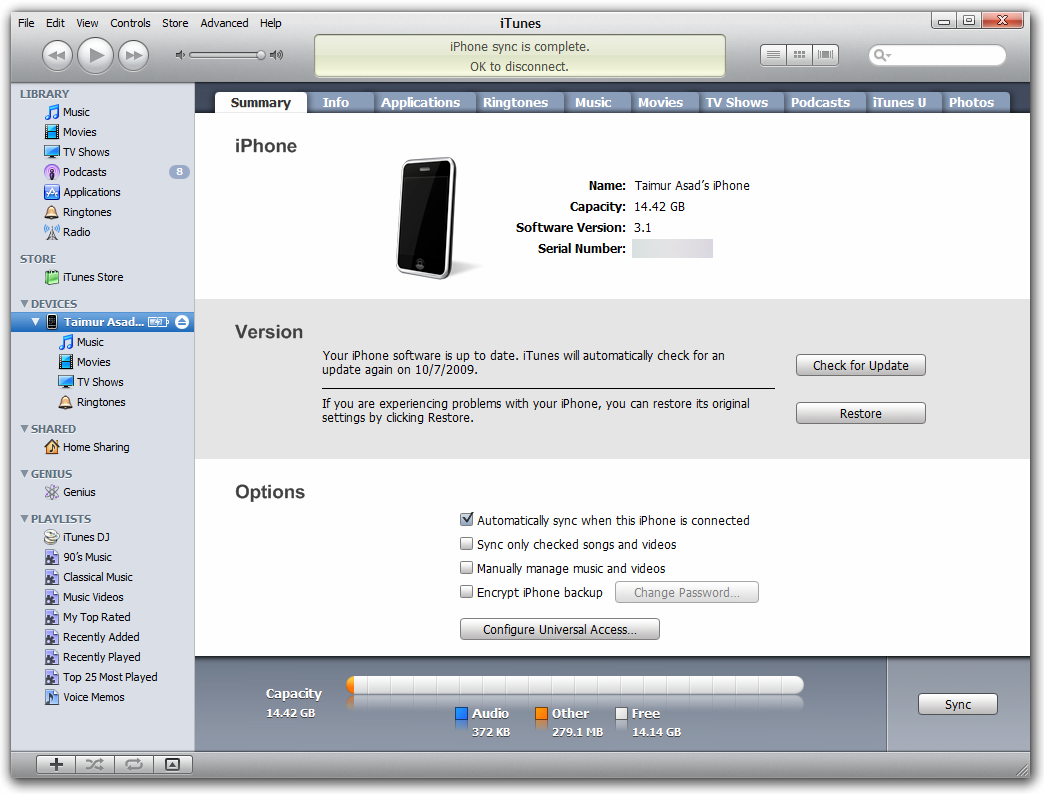
Step 7: Now you will have to restore your iPhone to this custom firmware 3.1.2 that you have just downloaded for your iPhone. Click on your phone from the sidebar in iTunes to get to this screen as shown in the screenshot below:
iTunes 9.0.1 on Windows 7
Step 8: Press and hold left “Shift” button on the keyboard and then click on “Restore” (Not “Update” or “Check for Update”) button in the iTunes and then release the “Shift” button.
This will make iTunes prompt you to select the location for your downloaded custom firmware 3.1.2. Select that custom .ipsw file and click on “Open”.
iPhone2,1_3.1.2_7D11_Custom_Restore
Step 9: Now sit back and enjoy as iTunes does the rest for you. This will involve a series of automated steps. Be patient at this stage and don’t do anything silly. Just wait while iTunes installs the new firmware 3.1.2 on your iPhone. Your iPhone screen at this point will be showing a progress bar indicating installation progress. After the installation is done, iPhone will restart automatically and you should now have a fully jailbroken iPhone running on firmware 3.1.2.

How to: Unlock iPhone on 3.1.2 Firmware:
You can now follow the tutorial/guide posted here to unlock your iPhone 3GS or iPhone 3G on firmware 3.1.2 using ultrasn0w.

Step 10: Once you are done with the unlocking and jailbreak process. You can now restore all your settings, apps, music, contacts and photos to the newly installed firmware version 3.1.2 by restoring the backup that you made in Step 2 from iTunes.
UPDATE 1: Follow the step-by-step guide posted here to fix missing carrier name or logo on your unlocked and jailbroken iPhone 3G/3GS running firmware 3.1.2.
UPDATE 2: Follow the step-by-step guide posted here to Enable Tethering on iPhone 3.1.2 Firmware.
UPDATE 3: You may also like to check out How to: Patch MobileInstallation File on iPhone 3.1.2 Firmware.

Source: redmondpie