5% Off Powermat

Join The Community

Monday, August 30, 2010

How to Restore iPhone 4, 3GS on iOS 4.0.1 Successfully, Bypassing iTunes 1004, 1015 Error


So you have an iPhone 4 or iPhone 3GS (New Bootrom), running iOS 4.0.1, with SHSH blobs saved on Cydia, and you want to restore your iPhone again to iOS 4.0.1. Now that Apple has stopped signing iOS 4.0.1, you wont be able to restore your iPhone 4 on iOS 4.0.1 by simply pointing iTunes to iOS 4.0.1 ipsw file. Because if you do so, iTunes will throw an error: “This iPhone [your name] iPhone could not be restored. This device isn’t eligible for the requested build.

Thursday, August 12, 2010

Unlock iOS 4.0.2 with Ultrasn0w [How to Guide]


While Apple has released iOS 4.0.2 for iPhone 4, 3GS and 3G, the important thing is that they haven’t updated the baseband. What this means is that 05.13.04 baseband which accompanies iOS 4.0.2 is still unlockable with ultrasn0w provided that you manage tojailbreak your iOS device. At the moment, only iPhone 3G and iPod touch 2G (Non-MC model) can be jailbroken on this latest firmware using the latest version of Redsn0w. So technically, you can only unlock iPhone 3G on iOS 4.0.2.

Download iOS 3.2.2 for iPad WiFi and iPad 3G


iOS 3.2.2 for iPad WiFi and iPad 3G is out! This update fixes the vulnerability in iOS which allows hackers to execute malicious code via PDF exploit in Safari. JailbreakMe used the same exploit to jailbreak all iPhones, iPod touches and iPads. Since this new update patches the exploit used by JailbreakMe, you wont be able to jailbreak your iPad until a new jailbreak tool is available.
iPad 3.2.2
If you love your jailbroken iPad, you better avoid this update now or you will be out of luck for long. Incase you have decided not to update, make sure you use PDF Loading Warner app which will make your web browsing safe. If you care about security, then you are better off updating to the latest firmware from iTunes.
To update to iOS 3.2.2 for iPad, all you need to do is to connect your iPad with your computer via USB and start iTunes. You should now see a message as shown below. Simply click on “Download and Install” button to get on to the new firmware.
Direct Download Links for iOS 3.2.2 (Official from Apple)
Download iTunes 9.2.1 for Windows and Mac

You can follow me on twitter to keep yourself updated on all the latest iPhone jailbreaking and unlocking releases.


[Via: redmondpie]

Jailbreak iOS 4.0.2 with Redsn0w [How to Guide]


Ok guys I just tested it on an old iPhone 3G lying around and can confirm that this works! Now that Apple has released iOS 4.0.2 to patch the PDF exploit, JailbreakMe which was previously used to jailbreak iOS 4.0.1 on iPhone 4, 3GS, 3G, iPod touch 3G / 2G and iPad isnow incompatible with iOS 4.0.2. But if you have iPhone 3G (which doesn’t rely on an unlock) or an iPod touch 2G (non-MC model) lying around, you can jailbreak it using the existing version of Redsn0w. Simply follow the step by step guide posted below to jailbreak the mentioned devices on iOS 4.0.2 using Redsn0w.
Step 1: Download iOS 4.0.2 for your version of iPhone and iPod touch. Download links are given below.
Step 2: Update to this latest firmware using the IPSW file you just downloaded via iTunes 9.2.1.
Step 3: Start Redsn0w 0.9.5b5-5 (download link given below) and point it to iOS 4 (Final Version), and not iOS 4.0.2 firmware file to proceed with the jailbreak.

Ultrasn0w 1.1-1 Unlock for iPhone 4, 3GS and 3G Released


The iPhone Dev-Team has just updated the ultrasn0w unlocking tool for iPhone 4, 3GS and 3G. This new version has lots of new tweaks added for performance and stability improvement. It will also help with standby battery life incase if your phone is draining the battery too fast. The compatibility though remains the same. It will work with all iPhones up to iOS 4.0.1 with baseband 04.26.08, 05.11.07, 05.12.01 and 05.13.04.

Wednesday, August 4, 2010

Carrier Unlock for iPhone 4 on iOS 4.0.1 Released !!


As promised, the iPhone Dev-Team has released the carrier unlocking tool calledUltrasn0w for US based iPhone 4 users who are stuck with AT&T network. For those of you who don’t know, carrier unlock for US iPhone 4s required complete rewrite ofultrasn0w software because of the new baseband OS present in iPhone 4.
Since Apple is selling unlocked iPhone 4s internationally, it is only the United States users who are still locked on AT&T network. So if you want to use your new iPhone 4 on networks other than AT&T, like T-Mobile for example, you can use this newly released Ultrasn0w 1.0 software to unlock your phone.
Simply follow the instructions posted below to unlock your iPhone 4 on iOS 4.0.1 / 4.0 on 01.59.00 baseband.

NOTE: T-Mobile US users will have to disable 3G by navigation to: Settings->General->Network and turning the "Enable 3G" switch to OFF before installing the ultrasn0w unlock.

How to: Jailbreak iPhone 4 on iOS 4.0.1: 
Step 1: Unlocking requires that your phone is jailbroken on the latest firmware. Follow the complete guide posted here to jailbreak your iPhone 4 on iOS 4.0.1 / 4.0 usingJailbreakMe 2.0.


How to: Unlock iPhone 4 (Any Baseband) on iOS 4.0.1: 
Step 2: Once you are done with the jailbreak, you can now unlock your iPhone on any baseband using Ultrasn0w 1.0-1 from Cydia. To do this:

  • Start “Cydia” on your iPhone.
  • Touch on “Manage” tab on the bottom.
  • Now touch on “Sources” as seen in the screenshot below:

iPhone 4 Unlock (1)
  • Touch on “Edit” and then on “Add”. You will be prompted to enter a url source as seen in the screenshot below. Type http://repo666.ultrasn0w.com” and touch on“Add Source” to add this repo if you haven’t already.
iPhone 4 Unlock (2)
Cydia will now automatically update your sources by following a series of automated steps.
  • After installation is completed. Search for “ultrasn0w 1.0-1” in Cydia and install this application. This app will automatically unlock your iPhone so that you can use it with any carrier.
Ultrasn0w 1.0-1
Step 3: Now simply restart your iPhone and voila! you should now have a fully unlocked iPhone 4 !
Disclaimer: This guide is for testing & educational purposes only. I’m not responsible for any loss of important data or malfunctioning of your iPhone. [via Twitter]


You can follow me on twitter or join our facebook fanpage to keep yourself updated on all the latest iPhone jailbreaking and unlocking releases.

[Via redmondpie]

Tuesday, August 3, 2010

Enable iPhone 4 FaceTime Video Calls Over 3G with My3G !! [Jailbreak Required]


e all have been waiting for this!! And now that iPhone 4 jailbreak has been released to public, the much awaited update to My3G app has been released !! With this new updated version of My3G for iPhone 4, you can now make FaceTime video calls over your cellular 3G network which otherwise isn’t possible. This in my opinion is a killer app and will alone be worth jailbreaking your iPhone 4 for.

My3G for iPhone 4 FaceTime
Official description of the app is as follows.
Facetime over 3G!!!!
My3G: Take back your 3G! My3G makes Apps believe that they are on WiFi instead of 3G. With My3G, you can now watch HiDef YouTube videos, use Skype/Fring/Other VOIP apps over the 3G network!
Features:
- In-App popup request to enable/never ask for My3G to be enabled for that app
- In-App indicator when My3G changes the network from 3G to WiFi
- Ability to select which apps are My3G enabled and not.
- Default Apps – no configuration for the most popular apps!
- SBSettings Toggle! You can temporarily enable My3G for all apps or toggle back using your defined Apps list
- Dynamic enablement – Higher successs rate (near 100%) then 3G Unrestrictor (which does one off solutions for apps). My3G enables 3G indicators more dynamically.
4.1 Updates
=============
- Facetime over 3G!!!
You will of course need a jailbroken iPhone to get it installed. Follow our complete step by step guide posted here to jailbreak iPhone 4 on iOS 4.0.1 / 4.0 using JailbreakMe 2.0. Once you are done with the jailbreak, goto Cydia, search for “My3G” app and install it. My3G will also install “RockApp” as a part of its package.

My3G for iPhone 4 is available on RockApp fo USD $3.99 and is worth every penny of yours!
Check out our iPhone Apps Gallery and iPad Apps Gallery to explore more apps for your iPhone and iPad.

You can follow me on twitter or join our facebook fanpage to keep yourself updated on all the latest jailbreaking and unlocking releases.

Source: redmondpie

Monday, August 2, 2010

Fix FaceTime and MMS Problem on iPhone 4 After Jailbreaking with JailbreakMe 2.0


I just found out about this fix from Redmond Pie’s Facebook fanpage and thought I should share it with you all. If you cant wait for JailbreakMe update, here is a quick possible fix for FaceTime and MMS issue on iPhone 4 after jailbreak using JailbreakMe 2.0 (Star). Simply follow the step by step guide below to fix the issue.


Step 1: Follow the step by step guide posted here to jailbreak your iPhone 4, 3GS on iOS 4.0.1 / 4.0 using JailbreakMe.


Step 2: Once you are done with the jailbreak, start “Cydia” on your iPhone.


Step 3: Touch on “Manage” tab on the bottom.


Step 4: Now touch on “Sources” as seen in the screenshot below:

Cydia iPhone 4 (1)
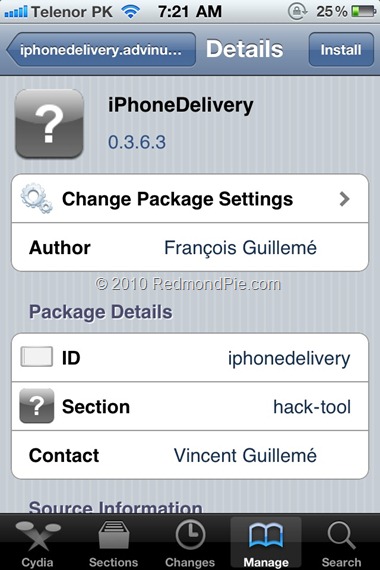
Step 5: Touch on “Edit”, and then on “Add”. You should now be prompted to enter a url source as seen in the screenshot below. Type“http://iphonedelivery.advinux.com/cydia/” and click on“Add Source”.
Cydia iPhone 4 (2)
Cydia will now automatically update your sources by following a series of automated steps.
Step 6: After installation is completed. Search for “iPhoneDelivery” in Cydia and install this application. This app apparently fixes both the FaceTime and MMS issue.
Cydia iPhone 4 (3)
Let us know how this one goes for you in the comments section below. [Thanks Ran Cohen for the share on Redmond Pie’s Facebook Fanpage]


UPDATE 1: JailbreakMe has been updated which has fixed all the problems related to FaceTime and MMS. If you are doing a fresh jailbreak, you will not have any of these issues. Existing users will need to do a “Complete Upgrade” of Cydia followed by a reset of Network Settings. To do this, simply fire up Cydia and let the loading to finish. It will now automatically ask you to update Cydia. Touch on “Complete Upgrade” and reboot the device once it is done. Go to Settings –> General –> Reset –> Reset Network Settings. Reboot the device again. The problem should be fixed now.

You can follow me on twitter to keep yourself updated on all the latest iPhone jailbreaking and unlocking releases.


Source: redmondpie

Jailbreak iOS 4.0.1 on iPhone 4, 3GS New Bootrom with JailbreakMe 2.0 Star [How to Guide Video]


The iPhone Dev-Team (Comex) has released JailbreakMe 2.0 (aka Star) which can jailbreak all iOS devices on their latest respective firmware like iOS 4.0 / 4.0.1. This does not work with iOS 4.1 Beta release. Since JailbreakMe 2.0 is a userland jailbreak, what this means is that you run it right in your iOS Safari browser to jailbreak the device. It cant get simpler than that !

iPhone 4 Jailbreak
The following step by step instructions, along with video are for iPhone 4iPhone 3GS(New bootrom / old bootrom) and iPhone 3G users. One thing which is important to note here is that this jailbreak tool doesn’t hacktivate your device. You will need an original supported SIM card to activate your phone with iTunes. If you don’t have an original SIM, you can follow the instructions in this video guide posted here to activate your phone without having the original SIM card.
Step 1: Start iTunes and backup everything from Contacts, Calendars, Photos, Videos and Apps.
Step 2: Update your iPhone 4, 3GS or iPhone 3G on the latest iOS 4.0.1 firmware with iTunes. Download links for the firmware and iTunes 9.2.1 can be found below.
Step 3: Once you are done with the update, make sure you are connected to a WiFi network. I haven’t tested it on 3G so I recommend using it on a reliable WiFi network.
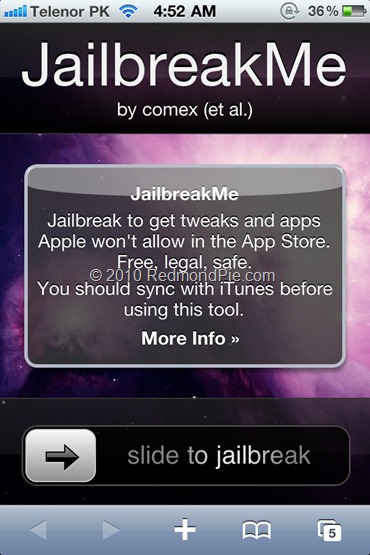
Step 4: Open Safari on your iPhone 4, 3GS or 3G and navigate to http://jailbreakme.com.
Step 5: “Slide to Jailbreak” to begin the jailbreak process.
iPhone 4 JailbreaMe 2.0 Star (1)
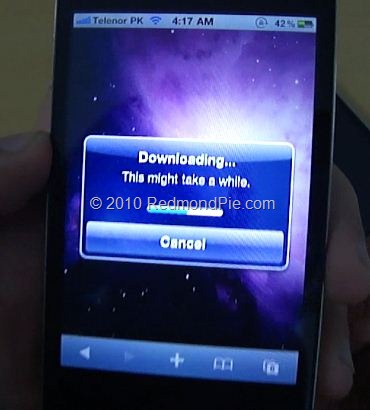
Step 6: Wait till the jailbreak tool download the required files..
iPhone 4 JailbreaMe 2.0 Star (3)
Step 7: Once the download is completed, it will automatically start the jailbreak process. Just don’t do anything silly at this point. Wait till the jailbreak process is completed.
iPhone 4 JailbreaMe 2.0 Star (4)
Step 8: Once done, you will be greeted with the following message.
iPhone 4 JailbreaMe 2.0 Star (2)
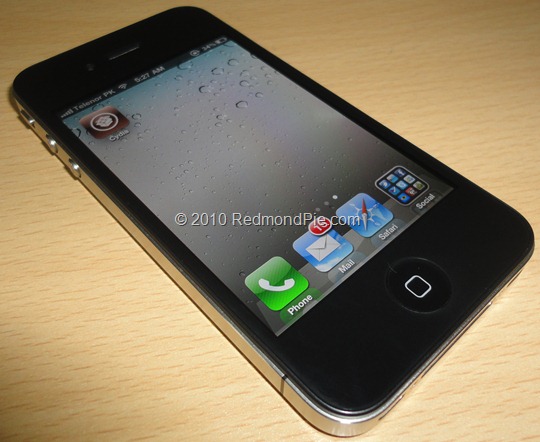
Step 9: Close the browser and look for Cydia. You should now have it on your phone!
Here is the video, showing all the above instructions in detail:
*video is processing, it will show up as soon as it is done..*
Make sure you subscribe to our Youtube Channel here for future videos related to iPhone, Android and Windows phones.
How to Unlock on iOS 4 / 4.0.1 (Any Baseband):

  • iPhone 3GS / 3G: Simply follow the step by step guide posted here to unlock your iPhone so that you can use it with any carrier you like. It is supported on all basebands upto 05.13.04.
  • iPhone 4: Wait for the iPhone Dev-Team to release the updated Ultrasn0w which can unlock it on this latest firmware.
Download iTunes 9.2.1
Download iOS 4.0.1 for iPhone 4, 3GS and 3G
UPDATE 1: Want to jailbreak your iPod touch 3G or iPod touch 2G MC Model? Follow the step by step guide posted here!
UPDATE 2: Those of you who are having problems with FaceTime and MMS should follow the steps posted here to fix the issue.

You can follow me on twitter to keep yourself updated on all the latest iPhone jailbreaking and unlocking releases.

Source: redmondpie

Jailbreak iPhone 4, 3GS, 3G on iOS 4 / 4.0.1 and iPad on iOS 3.2.1 with JailbreakMe 2.0


JailbreakMe 2.0 Star is the name! – The userland jailbreak for iPhone 4, iPhone 3GS, 3G on iOS 4 / 4.0.1, iPod touch on iOS 4, and iPad on iOS 3.2.1 is out !!. It is a browser basedjailbreak, all you have to do is to browse to http://jailbreakme.com from your iOS device tojailbreak it. Servers are probably thrashed right now. Keep trying until you successfully load the page. We will be back with quick how-to guides soon. Stay tuned for that !!

JailbreakMe
UPDATE 1: Full list of supported devices is as follows [Thanks to Daniel Le for posting this on Redmond Pie’s Facebook fanpage]
iPod 1G on 3.1.2
iPod 1G on 3.1.3
iPod 2G on 3.1.2
iPod 2G on 3.1.3
iPod 2G on 4.0
iPod 3G on 3.1.2
iPod 3G on 3.1.3
iPod 3G on 4.0
iPad on 3.2
iPad on 3.2.1
iPhone 3G on 3.1.2
iPhone 3G on 3.1.3
iPhone 3G on 4.0
iPhone 3G on 4.0.1
iPhone 3G[S] on 3.1.2
iPhone 3G[S] on 3.1.3
iPhone 3G[S] on 4.0
iPhone 3G[S] on 4.0.1
iPhone 4 on 4.0
iPhone 4 on 4.0.1
UPDATE 2: Early reports confirms that this new jailbreak is breaking FaceTime and MMS. We will let you know as soon as we have more on this.
UPDATE 3: Complete How-to Guide to Jailbreak iPhone 4, iPhone 3GS (New Bootrom) with JailbreakMe 2.0 (Star) Is up! Follow all the instructions posted here.
UPDATE 4: Complete How-to Guide to Jailbreak iPod touch 3G and iPod touch 2G MC Model with JailbreakMe 2.0 (Star) Is up! Follow all the instructions posted here.
UPDATE 5: Those of you who are having problems with FaceTime and MMS should follow the steps
posted here to fix the issue.

Source: redmondpie

Sunday, July 18, 2010

How to Jailbreak iOS 4.1 Beta on iPod touch 3G / 2G


With Sn0wbreeze 1.8 for Windows, you can now create custom firmware files of iOS 4.1 Beta for iPod touches which are already jailbroken on iOS 4.x. Currently, only iPhone 3GS (old bootrom pwned on iOS 4.x, and new bootrom pwned on 3.1.2 or with 3.1.2 SHSH blobs), iPod touch 2G (non-MC model, and already jailbroken on iOS 4.x), and iPod touch 3G and 2G (MC model) pwned on 3.1.2 or with 3.1.2 SHSH blobs are supported. So if you qualify any of these requirements, then you are good to go for a iOS 4.1 Beta jailbreak with sn0wbreeze 1.8. iPhone 3G users will have to jailbreak using Redsn0w, guide for which is posted here.

Sn0wbreeze 1.8
The instructions for jailbreaking with Sn0wbreeze 1.8 as usual are exactly similar to the instructions we posted earlier for iPhone 3GS. Simply download iOS 4.1 Beta for your version of iPod touch, and then follow the complete step by step instructions posted herewhich will guide you on how to create custom firmware files. Once you have created a custom firmware file, you can simply restore to it via iTunes 9.2 to complete the jailbreakprocess.
Sn0wbreeze 1.8 for iPod touch 3G
More Coverage >> Jailbreak iOS 4 iPod touch 3G and iPod touch 2G MC Model
Feel free to ask me any question here should you run into any problem during thejailbreak process.
Download iTunes 9.2 for Windows and Mac OS X
Download iOS 4.1 for iPhone 3GS, iPhone 3G and iPod touch
Download .NET Framework 3.5 (required to run Sn0wbreeze)
Download Sn0wbreeze 1.8 (Windows Only) [Fast Mirror link]
You may also like to check out:
You can follow me on twitter to keep yourself updated on all the latest jailbreaking and unlocking releases.

Source: redmondpie

Jailbreak iOS 4.1 with Sn0wbreeze [Custom Firmware Windows]


Sn0wbreeze 1.8 has been released. This is by the same developer who is behind other popular iPhone jailbreak tools such as sn0wbreeze 1.6 and 1.7 for iOS 4sn0wbreeze for iPhone 3.1.3f0recast and BlackBreeze. Just like the PwnageTool for Mac, Sn0wbreeze 1.8 can jailbreak iPhone 3GS (old bootrom, and already pwned on iOS 4.x), iPod touch 2G (non MC model) and iPod touch 3G on iOS 4.1 Beta. iPhone 3G users will have to jailbreakusing Redsn0w, guide for which is posted here.

Sn0wbreeze 1.8
So if you have a Windows machine, you can use Sn0wbreeze 1.8 to create custom firmware files without the upgraded baseband. Again, only the following devices are supported.
  • iPhone 3GS (old bootrom and already jailbroken on iOS 4.x)
  • iPod touch 2G (non MC model)
  • iPod touch 3G
Warning: If you rely on an unlock, DO NOT update to iOS 4.1.
Instructions are as follows.
Step 1: Download and install the latest version of iTunes.
Step 2: Now start iTunes and sync your iPhone with your PC so that it backs-up all your important data including settings, apps, music, contacts and photos.
Step 3: Download Sn0wbreeze and the original iOS 4.1 firmware file for your version of iPhone or iPod touch. Move all these files to your desktop.
Step 4: Start Sn0wbreeze and select “Simple Mode”.
sn0wbreeze 3.1.3
Step 5: Sn0wbreeze will now ask you to browse for your .ipsw file. Select the correct iOS 4.1 firmware .ipsw file by clicking the “Browse” button. Sn0wbreeze will verify the selected file and then will present you with following screen.
Sn0wbreeze 1.6 for 4.0 (1)
Step 6: Click on "Yes" when Sn0wbreeze asks you “Do you want to activate your iPhone?” for hacktivation. Click on “No” only if you are on an officially supported carrier like AT&T.
sn0wbreeze 3.1.3
Step 7: Sn0wbreeze will now create the custom .ipsw file for your iPhone which will be jailbroken.
sn0wbreeze 3.1.3sn0wbreeze 3.1.3
Step 8: Now you will have to restore your iPhone to this custom firmware 4.1 that you just cooked using Sn0wbreeze for your iPhone. Click on your phone from the sidebar in iTunes and then press and hold left “Shift” button on the keyboard and then click on “Restore” (Not “Update” or “Check for Update”) button in the iTunes and then release the “Shift” button.
This will make iTunes prompt you to select the location for your custom firmware 4.1. Select that custom .ipsw file and click on “Open”.
Step 9: Now sit back and enjoy as iTunes does the rest for you. This will involve a series of automated steps. Be patient at this stage and don’t do anything silly. Just wait while iTunes installs the new iOS 4.1 on your iPhone. Your iPhone screen at this point will be showing a progress bar indicating installation progress. After the installation is done, iPhone will restart automatically and you should now have a fully jailbroken iPhonerunning on iOS 4.1.
Step 10: Once you are done with the jailbreak process. You can now restore all your settings, apps, music, contacts and photos to the newly installed iOS 4.1 by restoring the backup that you made in Step 2 from iTunes.
Feel free to ask me any question here should you run into any problem during the jailbreak process.
Download iTunes 9.2 for Windows and Mac OS X
Download iOS 4.1 for iPhone 3GS, iPhone 3G and iPod touch
Download .NET Framework 3.5 (required to run Sn0wbreeze)
Download Sn0wbreeze 1.8 (Windows Only) [Fast Mirror link]
Disclaimer: This guide is for testing & educational purposes only. Follow it on your own risk. I’m not responsible for any loss of important data or malfunctioning of your iPhone.
You may also like to check out:
You can follow me on twitter to keep yourself updated on all the latest jailbreaking and unlocking releases.

Source: redmondpie

Unlock iOS 4.0.1 with Ultrasn0w [How to Guide]


iOS 4.0.1 was released earlier today for iPhone 4, 3GS and 3G. Fortunately for all iPhone unlockers, the baseband wasn’t upgraded from 05.13.04, which means you can unlock your iPhone even on the latest iOS 4.0.1 firmware. Since currently there is no jailbreak tool available for iPhone 4 and iPhone 3GS (new bootrom), and the current jailbreak tools for iPhone 3GS (old bootrom) are not compatible with iOS 4.0.1, so the only device which can currently be jailbroken and unlocked on iOS 4.0.1 is iPhone 3G.
How to: Jailbreak iPhone 3G on iOS 4.0.1:
Step 1: 
Follow the complete guide posted here to jailbreak your iPhone 3G using Redsn0w 0.9.5b5-5 on iOS 4.0.1.
How to: Unlock iPhone (Any Baseband) on iOS 4.0.1: 
Step 2:
 Once you are done with the jailbreak, you can now unlock your iPhone on any baseband using ultrasn0w 0.93 from Cydia. To do this:
  • Start “Cydia” on your iPhone.
  • Touch on “Manage” tab on the bottom.
  • Now touch on “Sources” as seen in the screenshot below:
Unlock iOS 4.0
  • Touch on “Edit” and then on “Add”. You will be prompted to enter a url source as seen in the screenshot below. Type http://repo666.ultrasn0w.com” and touch on“Add Source”.
Unlock iPhone 3.1.3
Cydia will now automatically update your sources by following a series of automated steps.
  • After installation is completed. Search for “ultrasn0w 0.93” in Cydia and install this application. This app will automatically unlock your iPhone so that you can use it with any carrier.
ultrasn0w 0.93
Step 3: Now simply restart your iPhone and voila! you should now have a fully unlocked iPhone 3G on iOS 4.0.1.
Disclaimer: This guide is for testing & educational purposes only. I’m not responsible for any loss of important data or malfunctioning of your iPhone.
You may also like to check out:
You can follow me on twitter to keep yourself updated on all the latest jailbreaking and unlocking releases.

Source: redmondpie

How to Jailbreak iOS 4.0.1 with Redsn0w [Guide]


iOS 4.0.1 has been released for iPhone 4, 3GS and 3G. While the iPhone 4 and 3GS users will have to wait for a new jailbreak tool, iPhone 3G can go ahead and jailbreak their phone on iOS 4.0.1 using Redsn0w 0.9.5b5-5. Again, this is strictly for iPhone 3G only. All other iOS based devices will be jailbreakable once Comex releases his new jailbreak tool.

Jailbreak iOS 4.0.1
Step 1: Download iOS 4.0.1 for your version of iPhone. Download links are posted here.
Step 2: Update to this latest firmware using the IPSW file you just downloaded via iTunes 9.2.
Step 3: Start Redsn0w 0.9.5b5-5 (download link given below) and point it to iOS 4 (Final Version), and not iOS 4.0.1 firmware file to proceed with the jailbreak.
Jailbreak iPhone OS 4
Step 4: Now select “Install Cydia” and click “Next”.
Jailbreak iPhone 4.0
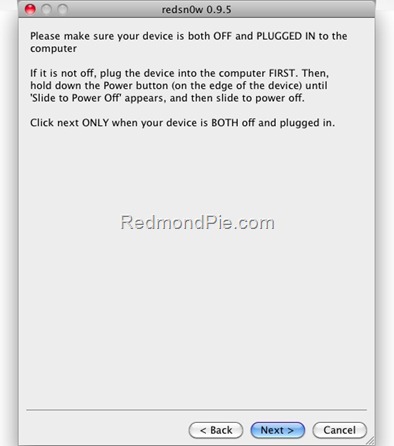
Step 5: Now make sure your device is both OFF and PLUGGED IN to the computer before you click “Next”.
Step 6: Connect your device in recovery mode by pressing the Power and buttons continuously.
Jailbreak iPhone 4.0 Beta
At this stage you will be presented with a screen where you will have to quickly hold “Power” button and then while holding the “Power” button, you will now have to hold “Home” button too. Now after few seconds release “Power” button but keep holding “Home” button until installation begins.
Step 7: Sit back and enjoy while redsn0w will do all the rest for you. Once done, youriPhone and/or iPod touch will restart automatically and you will find it jailbroken on the latest iOS 4.0.1 firmware.
How to Unlock 05.13.04, 05.12.01 to 04.26.08 on iOS 4.0.1 Using Ultrasn0w
Follow the complete step by step guide posted here to unlock iPhone 3G, on iOS 4.0.1, on any baseband using Ultrasn0w 0.93.
Download iOS 4.0.1 for iPhone 3G
Download Redsn0w 0.9.5b5-5 for Mac
Download Redsn0w 0.9.5b5-5 for Windows
Disclaimer: This guide is for testing & educational purposes only. I’m not responsible for any loss of important data or malfunctioning of your iPhone.
You may also like to check out:
You can follow me on twitter to keep yourself updated on all the latest jailbreaking and unlocking releases.

Source: redmondpie

Downgrade iOS 4.1 iPhone 4, 3GS, 3G and iPod touch to iOS 4 / iPhone 3.1.3 / 3.1.2 [How to Guide]


iOS 4.1 Beta was seeded to developers yesterday. Since the iOS 4.1 is currently onlyjailbreakable on iPhone 3G and iPod touch 2G (non-MC model), you may want to downgrade your other iOS based devices from iOS 4.1 so that you can jailbreak them on iOS 4, or iOS 3.1.3 / 3.1.2 (formerly iPhone 3.1.3 or 3.1.2).
The following step by step guide will help you rollback / downgrade to iOS 4, iPhone 3.1.3 and 3.1.2 from iOS 4.1 Beta as long as you have SHSH blobs saved for the respective firmwares for iPhone 4, iPhone 3GS, iPhone 3G and iPod touches.

Downgrade iOS 4.1
Step 1: Download the required old ipsw firmware files. (Download links: iOS 43.1.3,3.1.2)
Step 2: Put your device into DFU mode (not recovery mode).
  • Connect your iPhone to your computer.
  • Turn iPhone off.
  • Start iTunes.
  • Hold Power and Home buttons together for 10 seconds or so.
  • Release Power button but keep holding the Home button until your computer recognizes a new USB device.
  • iTunes will now recognize your iPhone.
Note: Your iPhone screen at this time should be blank (black in color), if not, then you are most likely in Recovery Mode, not DFU mode.
(Step 3 is for iPhone 4 and iPhone 3GS users only. If you are on iPhone 3G or iPod touch 2G (non-MC model), skip Step 3 and continue from Step 4)
Step 3: This step is applicable to iPhone 4iPhone 3GS, iPod touch 3G and iPod touch 2G(MC model) which have their SHSH blobs (ECID SHSH) saved on Cydia for the firmware you downgrading on. If you don’t have your SHSH files saved, you cannot downgrade the mentioned devices.
So what we will do is to trick iTunes into thinking that it is watching Apple servers, while in real, we are going to change the address to Saurik’s server.
  • Navigate to C:\Windows\System32\drivers\etc\ and locate “hosts” file.
Hosts file in Windows
Mac users can get to “/etc/” directory by going through “Go –> Go to Folder” from Finder.
Hosts file in OS X
  • Open this “hosts” file in Notepad (for Windows) or TextEdit (for Mac OS X) and add this
74.208.105.171 gs.apple.com
line as shown in the screenshot below:
21
Now simply save this file and you are good to go!
NOTE for Windows 7 and Vista: Start “Notepad” with Administrator privileges by right clicking on “Notepad” app, and click on “Run as Administrator“ option.
Step 4: You will now have to restore your iPhone or iPod touch to the firmware you downloaded in Step 1. Click on your phone icon from the sidebar in iTunes. Now press and hold left “alt” (option) button on Mac (Left “Shift” button on Windows) on the keyboard and then click on “Restore” (Not “Update” or “Check for Update”) button in the iTunes and then release this button.
iTunes
This will make iTunes prompt you to select the location for your downloaded firmware file. Select that ipsw file and click on “Open”.
Step 5: Now sit back and enjoy as iTunes does the rest for you. This will involve a series of automated steps. Be patient at this stage and don’t do anything silly. Just wait while iTunes installs firmware on your iPhone or iPod touch. Your iPhone screen at this point will be showing a progress bar indicating installation progress. Now at some point, iTunes will throw 1011, 1013 or 1015 error at you. This is normal, just ignore this error as the firmware has already been successfully installed on the device.
Step 6: Now you will need to exit your device from Recovery Mode. To do this, download a program called RecBoot (Windows / Mac). Run it and the click on “Exit Recovery Mode” button. Your device will now restart normally.
RecBoot
This is it, you should now be able to jailbreak your device on this older OS.  For iPhone 3.1.2 firmware, you can use blackra1nPwnageToolredsn0wsn0wbreezeultrasn0wand blacksn0w to jailbreak and unlock your iPhone and iPod touch. For iPhone 3.1.3 firmware for iPhone 2G, 3G, 3GS and iPod touch 1G/2G, you can use redsn0w 0.9.3,redsn0w 0.9.4sn0wbreezePwnageTool 3.1.5. Unlocking can be done using ultrasn0w orblacksn0w. iPhone 3.1.3 (on devices with new bootrom and baseband) can use Spirit to jailbreak iPhone 3GS/3G and iPod touch 3G/2G.
You may also like to check out:
You can follow me on twitter to keep yourself updated on all the latest jailbreaking and unlocking releases.

Source: redmondpie

How to Jailbreak iOS 4.1 Beta with Redsn0w [Guide]


Yes you read that right ! The newly released iOS 4.1 is jailbreakable using Redsn0w 0.9.5b5. All you need is the latest iOS 4.1 firmware for iPhone 3G or iPod touch 2G (non-MC Models) and you can jailbreak it using Redsn0w on Windows and Mac. Again, this is strictly for iPhone 3G and iPod touch 2G (non-MC models) only. If your iPhone 3G relies on an unlock, you MUST STAY AWAY from iOS 4.1 for now.

Redsn0w 0.9.5b5-5
Full set of instructions on how to to jailbreak iPhone 3G and iPod touch 2G on iOS 4.1 using Redsn0w 0.9.5 can be found here. Please read all the instructions carefully beforeupgrading and jailbreaking your phone on iOS 4.1.
Download iOS 4.1
Download Redsn0w 0.9.5b5-5 for Mac
Download Redsn0w 0.9.5b5-5 for Windows
Download iTunes 9.2 for Windows and Mac
You may also like to check out:

You can follow me on twitter to keep yourself updated on all the latest iPhone jailbreaking and unlocking releases.


Source: redmondpie